> ## Documentation Index
> Fetch the complete documentation index at: https://docs.churningtracker.com/llms.txt
> Use this file to discover all available pages before exploring further.
# Connecting buying groups
> Link your buying group accounts so Churning Tracker can pull deals, submit tracking, and show your BFMR tracker.
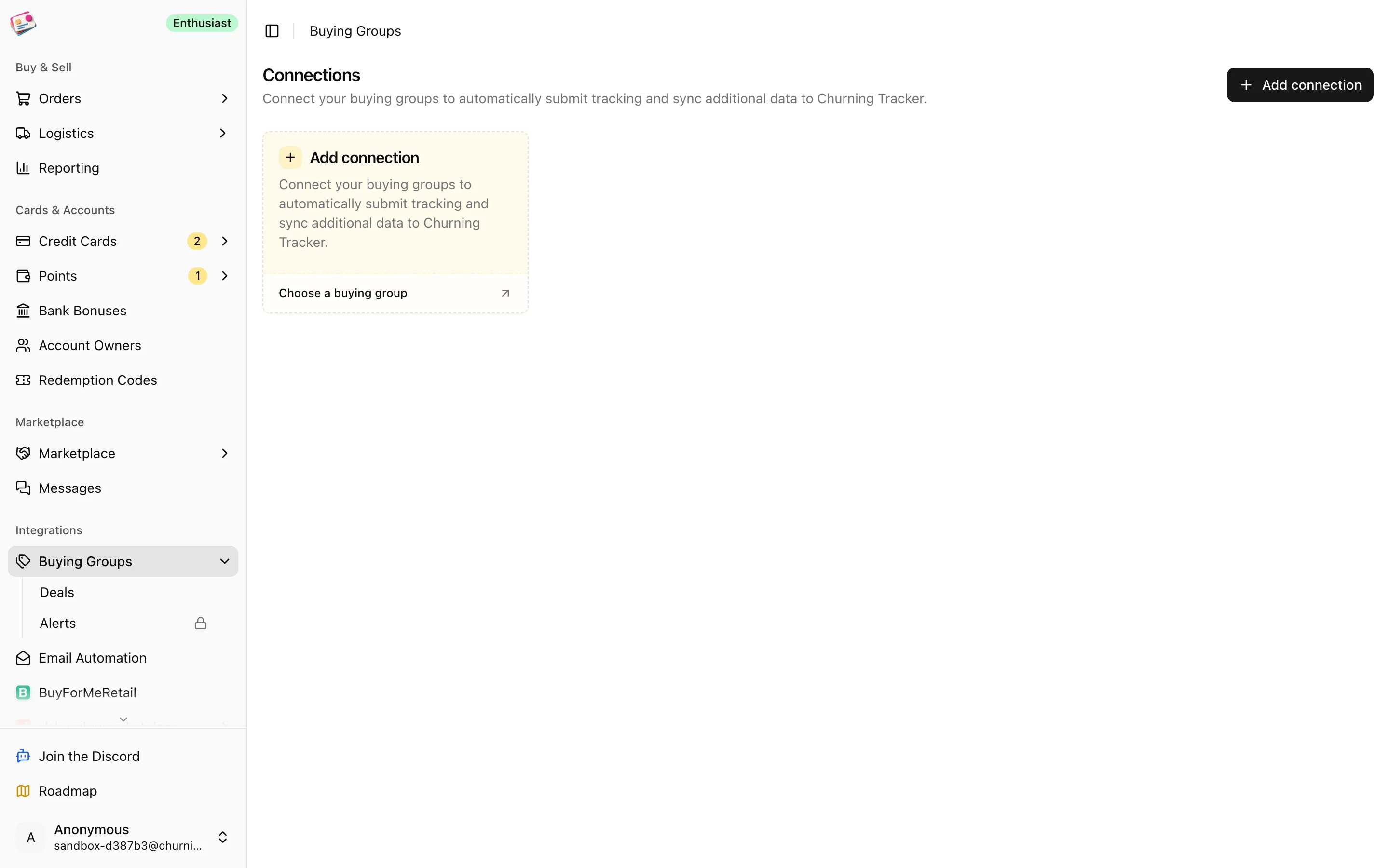
Churning Tracker integrates with 14 buying groups. Once a group is connected, its deals appear in the [deals feed](/buying-groups/deals), tracking numbers can be [submitted](/buying-groups/submitting-tracking) straight from the orders table, and for BuyForMeRetail you get a live view of your reservations. Connections are managed under **Integrations → Buying Groups**.
 ## Supported groups
| Group | What you need |
| - | - |
| BuyForMeRetail | A public access key and private API token from BFMR's developer tools page |
| Buying Group (buyinggroup.com) | The email and password you log in with |
| Points 4 Days, Max Out Deals, MVP Buying Group, Earn From Buying, Points Cash Back, Buy Get Rewards, U Earn Points, Buyers For Points, PowerBuy Network, Big Deal Points, Buy Get Paid, U Buy We Pay | The email and password you log in with |
You can track orders from any other group too, just without the integrations. See [Custom groups](#custom-groups).
## Connect a group
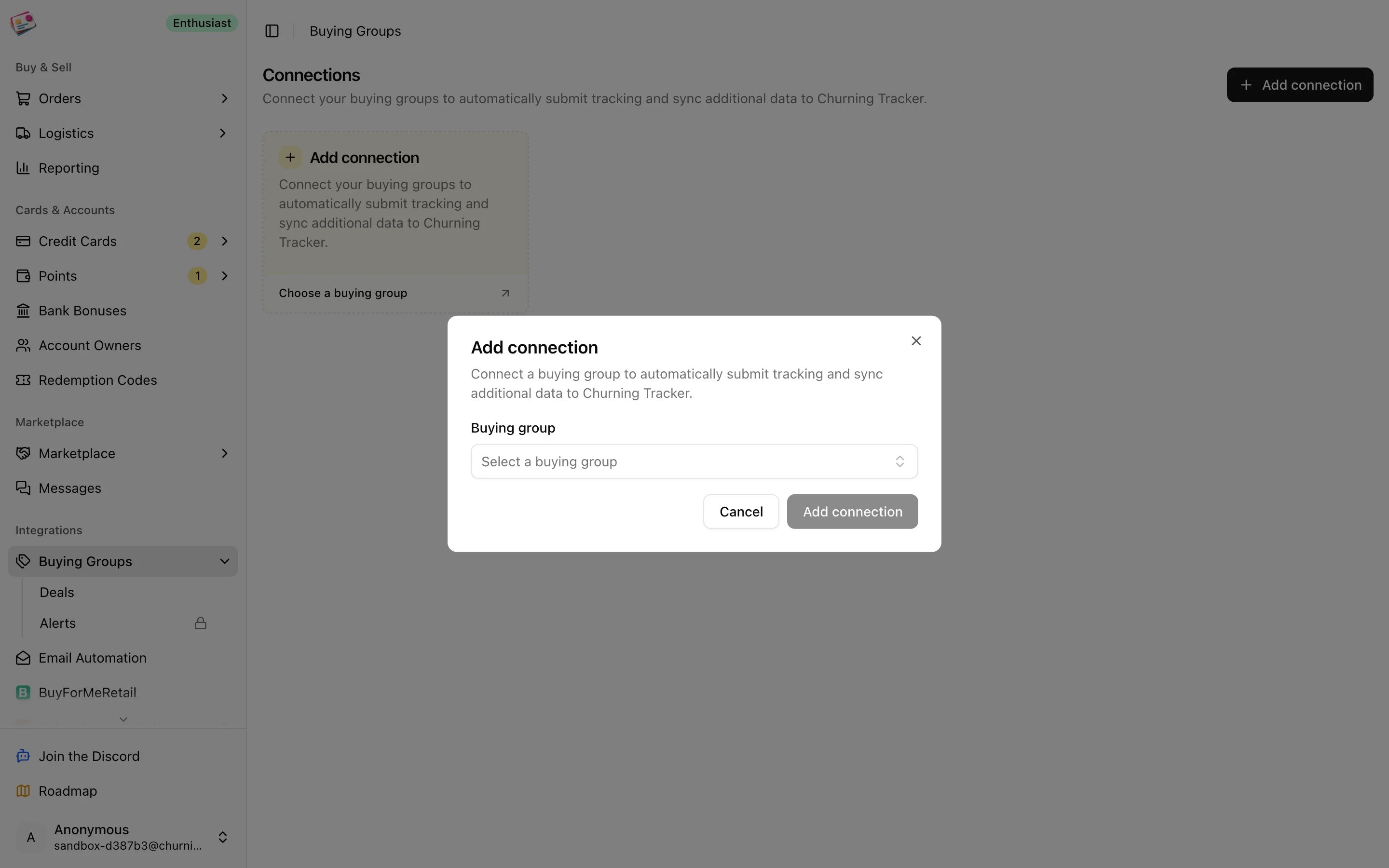
On the Buying Groups page, click **Add connection** and pick the group.
For BuyForMeRetail, paste the public access key and private API token from the **here** link, which opens BFMR's developer tools. For every other group, enter the email and password you use on their site.
Churning Tracker signs in once to confirm the credentials. You'll see "Successfully connected", or a message asking you to check the keys or the email and password.
## Supported groups
| Group | What you need |
| - | - |
| BuyForMeRetail | A public access key and private API token from BFMR's developer tools page |
| Buying Group (buyinggroup.com) | The email and password you log in with |
| Points 4 Days, Max Out Deals, MVP Buying Group, Earn From Buying, Points Cash Back, Buy Get Rewards, U Earn Points, Buyers For Points, PowerBuy Network, Big Deal Points, Buy Get Paid, U Buy We Pay | The email and password you log in with |
You can track orders from any other group too, just without the integrations. See [Custom groups](#custom-groups).
## Connect a group
On the Buying Groups page, click **Add connection** and pick the group.
For BuyForMeRetail, paste the public access key and private API token from the **here** link, which opens BFMR's developer tools. For every other group, enter the email and password you use on their site.
Churning Tracker signs in once to confirm the credentials. You'll see "Successfully connected", or a message asking you to check the keys or the email and password.
 Each card shows whether the group is connected, the account it uses, and when it was last updated. Open a card to **Test connection** or **Disconnect**. Disconnecting deletes the stored credentials.
Every few days Churning Tracker re-checks connections that haven't been used recently. A connection is marked disconnected after three failed logins in a row, and you get an email with a link to reconnect. A failed manual test disconnects it right away.
Each plan allows a set number of connections; see [Plans and limits](/plans-and-limits). When you downgrade, the newest connections are kept up to the new limit.
## Custom groups
Any buying group that isn't in the list can be added as a custom group, up to 15 of them. Open the buying group picker on an order form or filter and click **Manage** at the bottom. Custom groups show up everywhere a built-in group does, but there's nothing to connect: no deals, and submitting tracking falls back to marking it as submitted by hand.
## BuyForMeRetail tracker
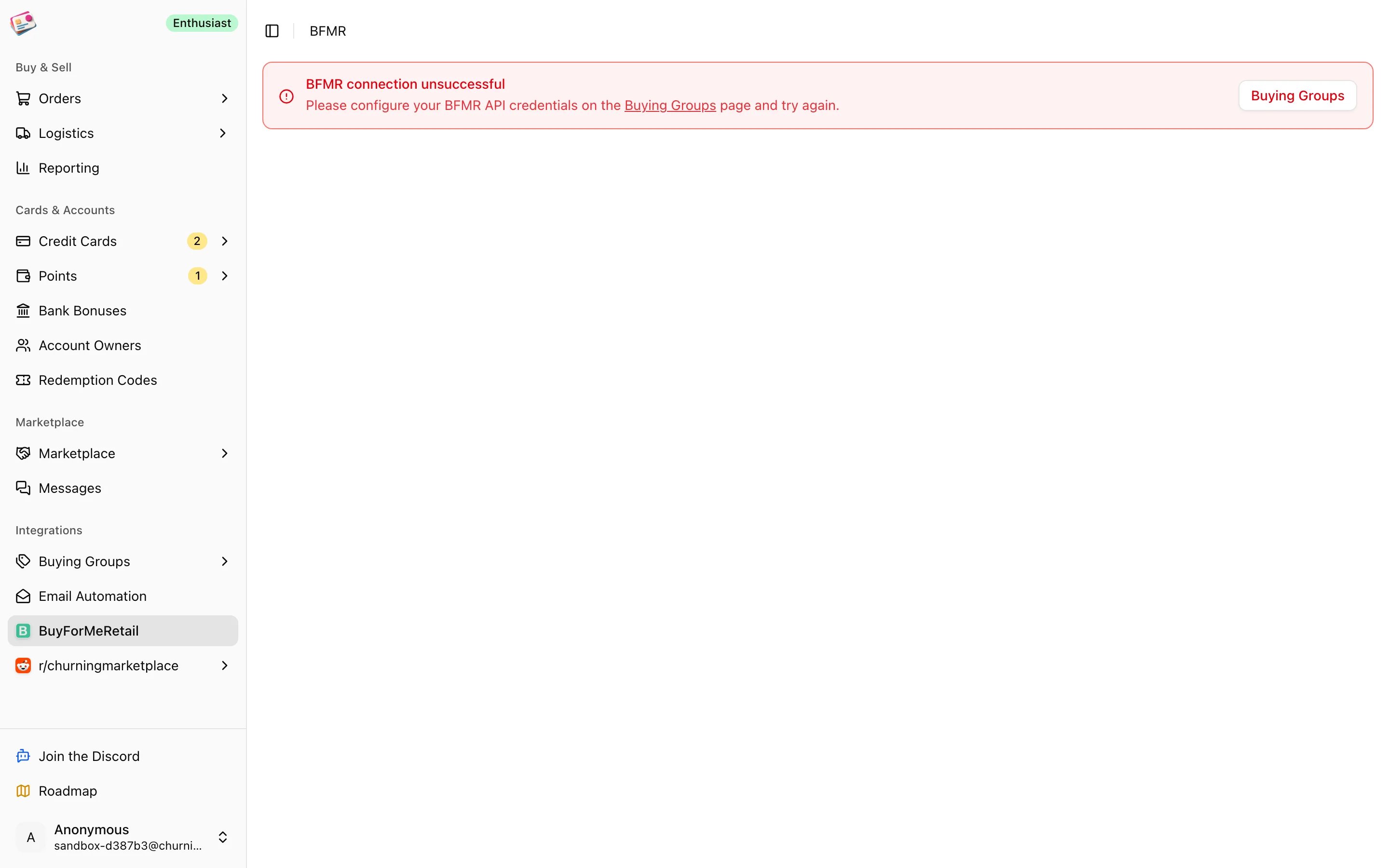
With BFMR connected, **Integrations → BuyForMeRetail** shows your BFMR tracker: every reservation with its status, item, order number, quantities, unit cost, insurance, payout, expected profit, tracking number, and retailers. Search it or filter by status.
Each card shows whether the group is connected, the account it uses, and when it was last updated. Open a card to **Test connection** or **Disconnect**. Disconnecting deletes the stored credentials.
Every few days Churning Tracker re-checks connections that haven't been used recently. A connection is marked disconnected after three failed logins in a row, and you get an email with a link to reconnect. A failed manual test disconnects it right away.
Each plan allows a set number of connections; see [Plans and limits](/plans-and-limits). When you downgrade, the newest connections are kept up to the new limit.
## Custom groups
Any buying group that isn't in the list can be added as a custom group, up to 15 of them. Open the buying group picker on an order form or filter and click **Manage** at the bottom. Custom groups show up everywhere a built-in group does, but there's nothing to connect: no deals, and submitting tracking falls back to marking it as submitted by hand.
## BuyForMeRetail tracker
With BFMR connected, **Integrations → BuyForMeRetail** shows your BFMR tracker: every reservation with its status, item, order number, quantities, unit cost, insurance, payout, expected profit, tracking number, and retailers. Search it or filter by status.
 Two actions are available on individual rows:
* **Add order number** on a Reserved row that doesn't have one yet. Enter the order number and the quantity it covers.
* **Add tracking number** on a Purchased row that has an order number but no tracking yet. Enter the tracking number and quantity, up to the reserved amount.
This page is a window into BFMR. Nothing from it is copied into your Churning Tracker orders, and nothing you do here changes your orders. To get BFMR orders into Churning Tracker, use [email automation](/imports/email-automation), the [Chrome extension](/imports/chrome-extension), a [CSV import](/imports/csv-imports), or add them by hand.
This documentation is built and hosted on [Mintlify](https://mintlify.com), a developer documentation platform.
Two actions are available on individual rows:
* **Add order number** on a Reserved row that doesn't have one yet. Enter the order number and the quantity it covers.
* **Add tracking number** on a Purchased row that has an order number but no tracking yet. Enter the tracking number and quantity, up to the reserved amount.
This page is a window into BFMR. Nothing from it is copied into your Churning Tracker orders, and nothing you do here changes your orders. To get BFMR orders into Churning Tracker, use [email automation](/imports/email-automation), the [Chrome extension](/imports/chrome-extension), a [CSV import](/imports/csv-imports), or add them by hand.
This documentation is built and hosted on [Mintlify](https://mintlify.com), a developer documentation platform.