> ## Documentation Index
> Fetch the complete documentation index at: https://docs.churningtracker.com/llms.txt
> Use this file to discover all available pages before exploring further.
# Submitting tracking
> Send tracking numbers to your buying group from the orders table, one order or many at a time.
Once an order has tracking numbers, you can submit them to the buying group without leaving Churning Tracker. This works for all 14 [connected groups](/buying-groups/connections). For custom groups, or when a group isn't connected, you can still mark tracking as submitted so the order moves along.
 ## Submit from an order
On the Orders page, hover a buying group order that has unsubmitted tracking. A **Submit tracking** button appears in the row actions. Orders with nothing left to submit don't show it.
For buyinggroup.com and the SellerSpeed groups, the dialog lists each tracking number with its order number and an optional **Shipment Value**. The value is pre-filled when the order has a single item with a quantity of one. Fill it in if the group wants it.
Click **Submit**. The order number and value go to the group along with each tracking number. The tracking number gets a blue "submitted" icon, and the result tells you how many went through.
### BuyForMeRetail
BFMR submissions attach tracking to your reservations, so the dialog works one tracking number at a time. Each order needs an order number first; BFMR reservations are looked up by it.
For each tracking number, pick the reservations in that box and enter how many units of each are inside. Reservations already linked to a tracking number can't be picked again. Use **Next tracking number** to move through the list and **Submit** at the end.
## Submit in bulk
Select several orders and choose **Submit tracking** from the **Actions** menu. Which dialog opens depends on the selection:
* All BFMR orders: the BFMR reservation dialog.
* All buyinggroup.com or SellerSpeed orders: the standard dialog with every tracking number listed.
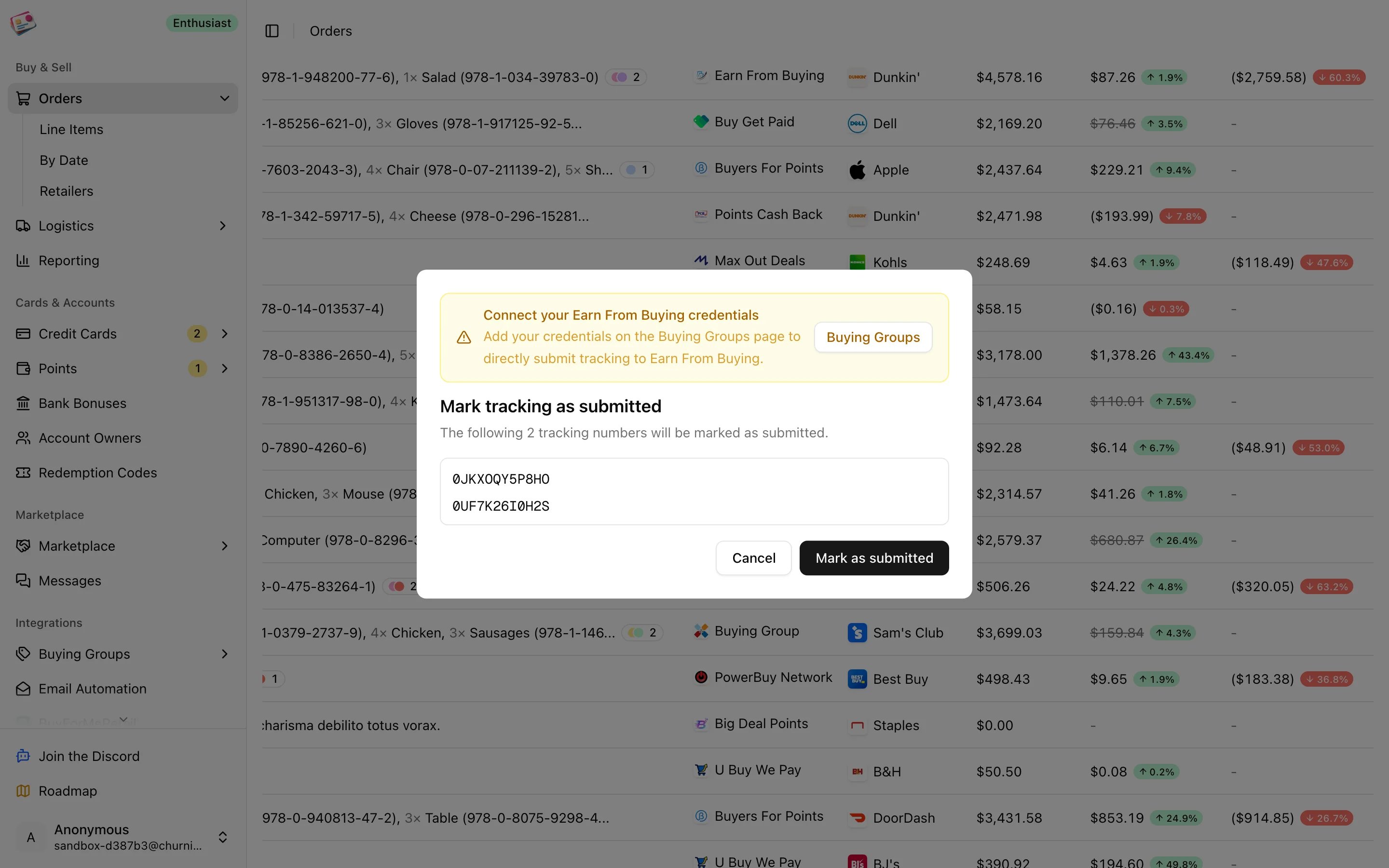
* A mix, custom groups, or groups that aren't connected: the **Mark tracking as submitted** dialog instead.
## Marking as submitted by hand
Every submit dialog has a **Mark as submitted** button, and the Shipments page has a **Mark as submitted** row and bulk action. These only record a submitted date and don't send anything, which is the right thing when you submitted on the group's site yourself or the group has no integration. Manual marks don't count toward the monthly submission quota.
## When submission falls back or fails
* **No credentials**: you'll see "Connect your credentials" and the manual dialog. Connect the group and try again.
* **No tracking numbers**: the order needs at least one unsubmitted tracking number. Add them on the order or from [Shipments](/shipments).
* **Quota used up**: the Free plan includes 10 automatic submissions a month. After that, submissions fall back to the manual dialog until the month resets. Paid plans are unlimited.
* **Partial success**: the result shows how many tracking numbers were accepted. Check the ones still marked unsubmitted and retry.
This documentation is built and hosted on [Mintlify](https://mintlify.com), a developer documentation platform.
## Submit from an order
On the Orders page, hover a buying group order that has unsubmitted tracking. A **Submit tracking** button appears in the row actions. Orders with nothing left to submit don't show it.
For buyinggroup.com and the SellerSpeed groups, the dialog lists each tracking number with its order number and an optional **Shipment Value**. The value is pre-filled when the order has a single item with a quantity of one. Fill it in if the group wants it.
Click **Submit**. The order number and value go to the group along with each tracking number. The tracking number gets a blue "submitted" icon, and the result tells you how many went through.
### BuyForMeRetail
BFMR submissions attach tracking to your reservations, so the dialog works one tracking number at a time. Each order needs an order number first; BFMR reservations are looked up by it.
For each tracking number, pick the reservations in that box and enter how many units of each are inside. Reservations already linked to a tracking number can't be picked again. Use **Next tracking number** to move through the list and **Submit** at the end.
## Submit in bulk
Select several orders and choose **Submit tracking** from the **Actions** menu. Which dialog opens depends on the selection:
* All BFMR orders: the BFMR reservation dialog.
* All buyinggroup.com or SellerSpeed orders: the standard dialog with every tracking number listed.
* A mix, custom groups, or groups that aren't connected: the **Mark tracking as submitted** dialog instead.
## Marking as submitted by hand
Every submit dialog has a **Mark as submitted** button, and the Shipments page has a **Mark as submitted** row and bulk action. These only record a submitted date and don't send anything, which is the right thing when you submitted on the group's site yourself or the group has no integration. Manual marks don't count toward the monthly submission quota.
## When submission falls back or fails
* **No credentials**: you'll see "Connect your credentials" and the manual dialog. Connect the group and try again.
* **No tracking numbers**: the order needs at least one unsubmitted tracking number. Add them on the order or from [Shipments](/shipments).
* **Quota used up**: the Free plan includes 10 automatic submissions a month. After that, submissions fall back to the manual dialog until the month resets. Paid plans are unlimited.
* **Partial success**: the result shows how many tracking numbers were accepted. Check the ones still marked unsubmitted and retry.
This documentation is built and hosted on [Mintlify](https://mintlify.com), a developer documentation platform.