> ## Documentation Index
> Fetch the complete documentation index at: https://docs.churningtracker.com/llms.txt
> Use this file to discover all available pages before exploring further.
# Card benefits
> Keep up with the credits and perks on your cards, period by period, on the To Dos page.
Premium cards come with credits that reset monthly, quarterly, or yearly, and it's easy to let one lapse. The **To Dos** page under **Cards & Accounts → Credit Cards** lists every trackable benefit on your open cards, grouped by how often it renews, so you can tick them off as you use them. The same list appears on each card's detail panel.
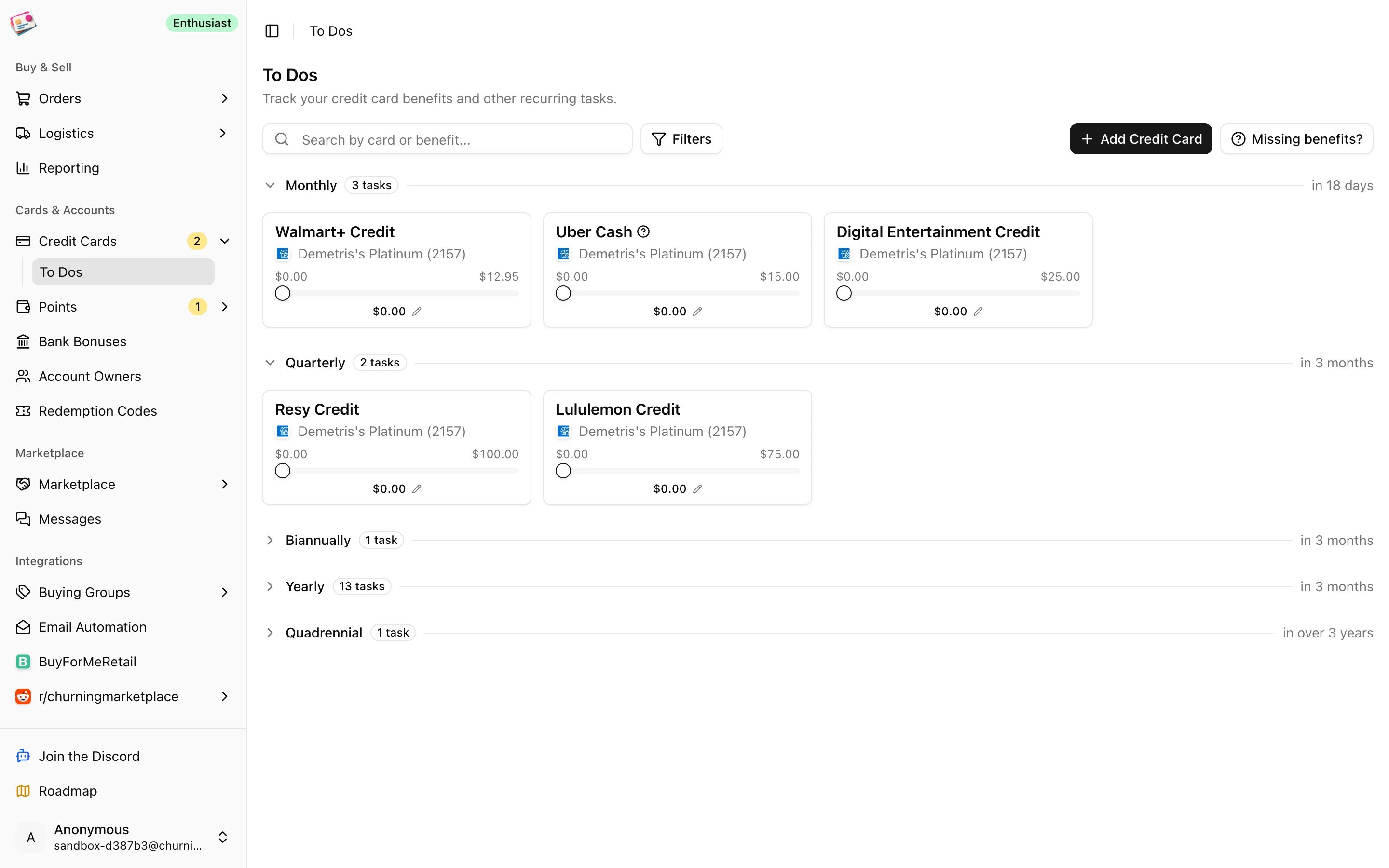 Benefits are attached to card products by Churning Tracker, so you don't have to enter them. If a card you hold is missing one, click **Missing benefits?** and tell us.
## Periods
| Section | Resets |
| - | - |
| Monthly | Each calendar month |
| Quarterly | Each calendar quarter |
| Biannually | January to June, July to December |
| Yearly | Each calendar year |
| Anniversary | One year from the card's open date |
| Quadrennial | Four-year windows from the open date |
| One Time | Never |
Each section header shows how many tasks are in it and when the current period ends. Anniversary and quadrennial benefits need the card's open date; without it they're greyed out with a prompt to set it.
## Use a benefit
Click the benefit card. It turns green and counts as used for the current period. Click again to undo.
For dollar credits, drag the slider on the card to the amount you've used so far. The card gets a blue border until the period is complete. Clicking a partly used card completes it with the amount on the slider.
Hover the card and click **Edit** to set the exact amount used and add notes. Tick **I don't use this benefit** to move it to the Ignored section; untick it later to bring it back.
Benefits are attached to card products by Churning Tracker, so you don't have to enter them. If a card you hold is missing one, click **Missing benefits?** and tell us.
## Periods
| Section | Resets |
| - | - |
| Monthly | Each calendar month |
| Quarterly | Each calendar quarter |
| Biannually | January to June, July to December |
| Yearly | Each calendar year |
| Anniversary | One year from the card's open date |
| Quadrennial | Four-year windows from the open date |
| One Time | Never |
Each section header shows how many tasks are in it and when the current period ends. Anniversary and quadrennial benefits need the card's open date; without it they're greyed out with a prompt to set it.
## Use a benefit
Click the benefit card. It turns green and counts as used for the current period. Click again to undo.
For dollar credits, drag the slider on the card to the amount you've used so far. The card gets a blue border until the period is complete. Clicking a partly used card completes it with the amount on the slider.
Hover the card and click **Edit** to set the exact amount used and add notes. Tick **I don't use this benefit** to move it to the Ignored section; untick it later to bring it back.
 Completed benefits move to the **Completed** section until the period rolls over. **History** on any card shows every completed period with its date, amount, and notes, and lets you adjust the completion date within that period.
The sidebar badge on Credit Cards counts benefits whose period ends within seven days. There are no email reminders for benefits.
On the Free plan, benefits are shown for your five open cards with the highest annual fees. Other cards show "This card does not have any trackable benefits" until you upgrade.
This documentation is built and hosted on [Mintlify](https://mintlify.com), a developer documentation platform.
Completed benefits move to the **Completed** section until the period rolls over. **History** on any card shows every completed period with its date, amount, and notes, and lets you adjust the completion date within that period.
The sidebar badge on Credit Cards counts benefits whose period ends within seven days. There are no email reminders for benefits.
On the Free plan, benefits are shown for your five open cards with the highest annual fees. Other cards show "This card does not have any trackable benefits" until you upgrade.
This documentation is built and hosted on [Mintlify](https://mintlify.com), a developer documentation platform.