> ## Documentation Index
> Fetch the complete documentation index at: https://docs.churningtracker.com/llms.txt
> Use this file to discover all available pages before exploring further.
# Credit cards
> Track every card and owner, and let each card's earn rate flow into order profit.
Credit cards do two jobs in Churning Tracker. They're a record of what you hold: annual fees, limits, bonuses, and dates. And they're how order profit learns about points, because each order's card earnings come from the card you paid with. The page is under **Cards & Accounts → Credit Cards**.
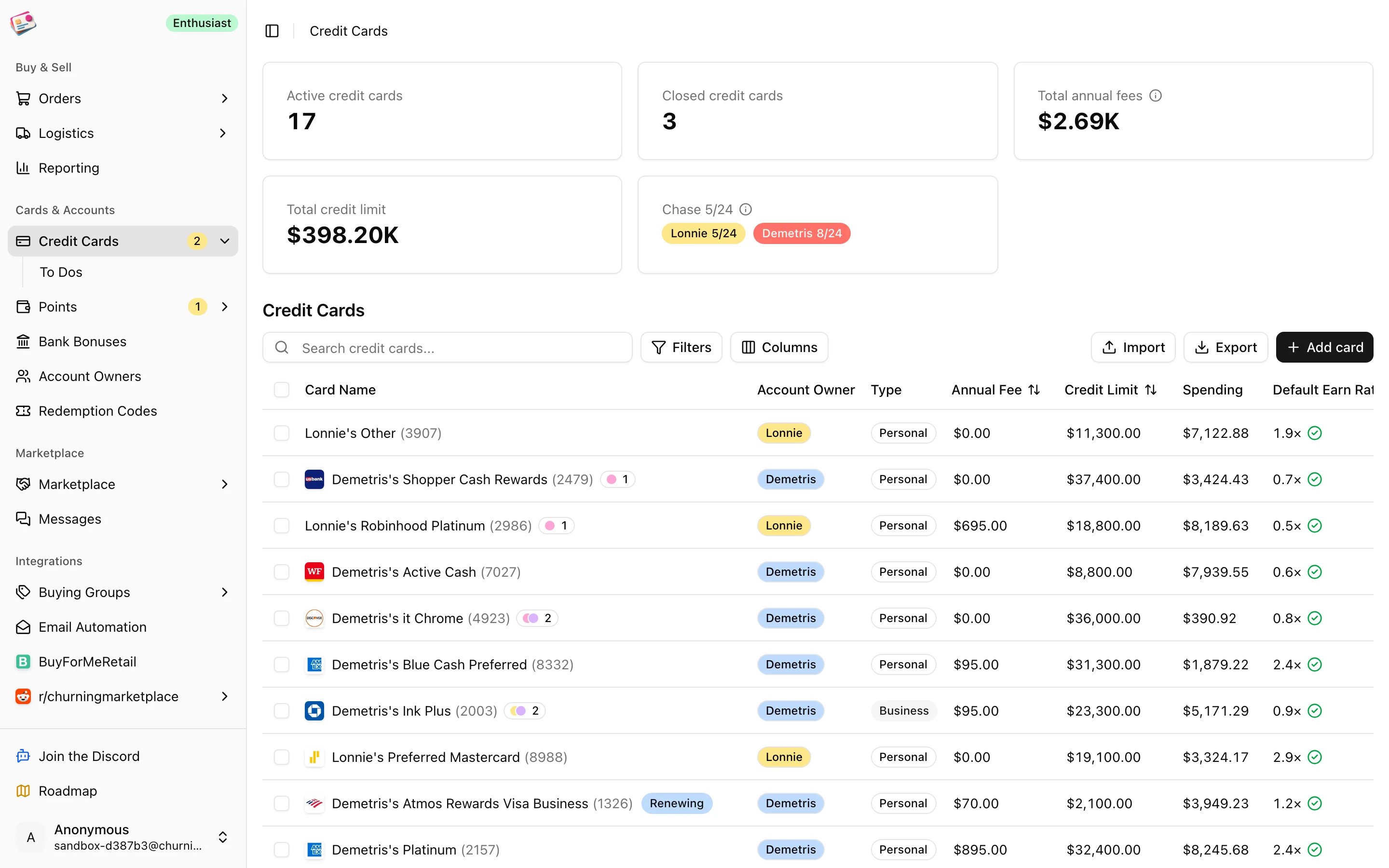 The tiles at the top count active and closed cards, total annual fees (waived fees excluded), total credit limit, and each owner's Chase 5/24 count, which is personal cards opened in the last 24 months, not counting product changes.
## Add a card
Click **Add card**.
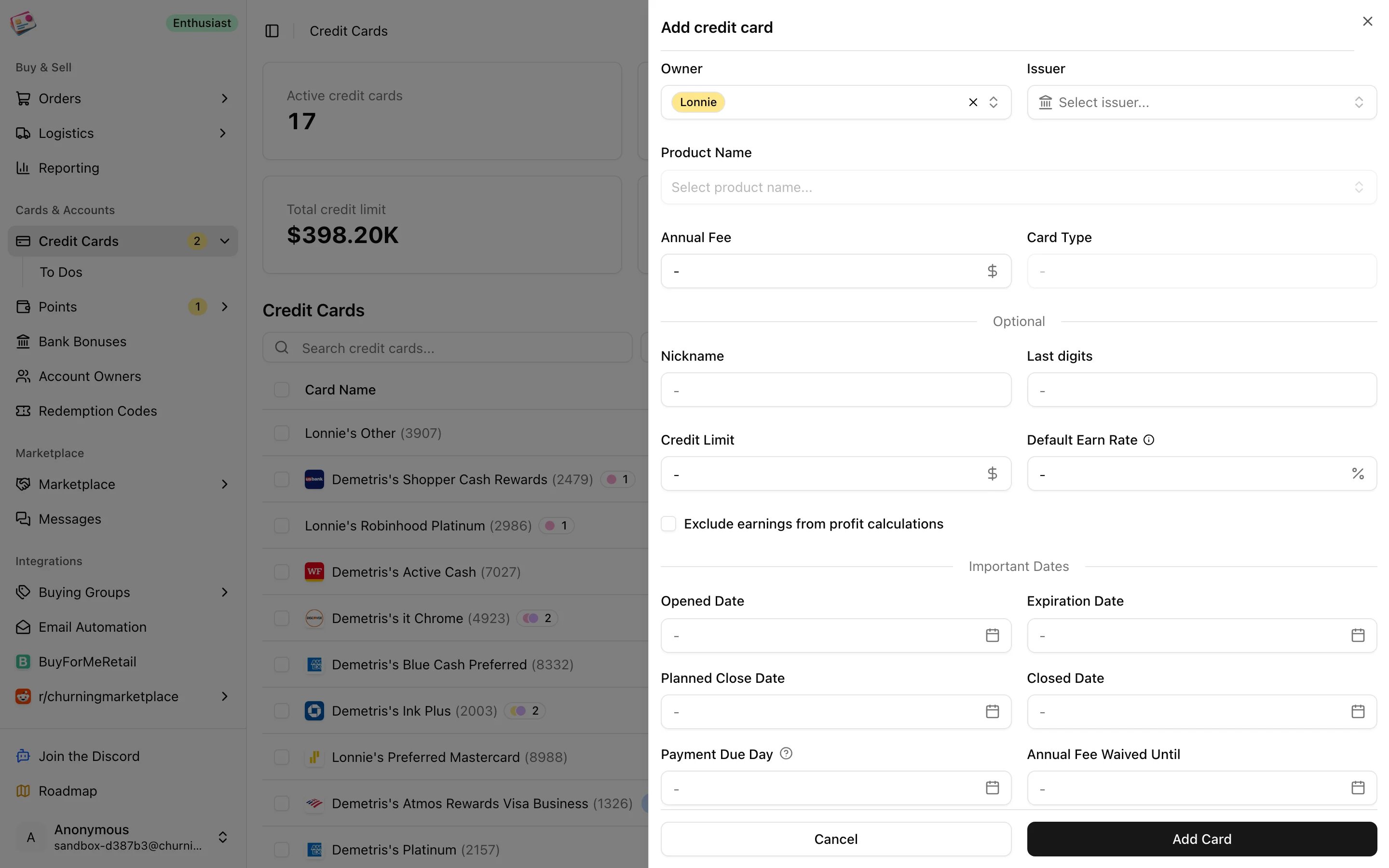
Owner defaults to your primary [account owner](/cards/account-owners). Choose the issuer, then search the product catalog. The annual fee and card type fill in from the product, and you can change the fee. If a product is missing, use the **Can't find it? Submit a request** link.
Under **Optional**: nickname, last 4 or 5 digits, credit limit, and the **Default Earn Rate**, which pre-fills the earn rate on every order paid with this card. Tick **Exclude earnings from profit calculations** for cards whose points you don't want counted.
Under **Important Dates**: opened date, expiration, planned close date, closed date, payment due day (use 31 for the last day of the month), and the date an annual fee waiver ends.
Under **Sign Up Bonus**: the bonus amount and type (points or cash), the spend requirement, the deadline, and a **Received** checkbox.
Click **Add Card**.
The tiles at the top count active and closed cards, total annual fees (waived fees excluded), total credit limit, and each owner's Chase 5/24 count, which is personal cards opened in the last 24 months, not counting product changes.
## Add a card
Click **Add card**.
Owner defaults to your primary [account owner](/cards/account-owners). Choose the issuer, then search the product catalog. The annual fee and card type fill in from the product, and you can change the fee. If a product is missing, use the **Can't find it? Submit a request** link.
Under **Optional**: nickname, last 4 or 5 digits, credit limit, and the **Default Earn Rate**, which pre-fills the earn rate on every order paid with this card. Tick **Exclude earnings from profit calculations** for cards whose points you don't want counted.
Under **Important Dates**: opened date, expiration, planned close date, closed date, payment due day (use 31 for the last day of the month), and the date an annual fee waiver ends.
Under **Sign Up Bonus**: the bonus amount and type (points or cash), the spend requirement, the deadline, and a **Received** checkbox.
Click **Add Card**.
 Cards can carry [tags](/orders/overview#tags-notes-and-attachments) on paid plans and notes up to 1,000 characters. **Duplicate** in the row menu copies a card without its last digits.
## Product changes
When you upgrade, downgrade, or sidegrade a card, add the new card and link it under **Product Changes** with **Opened From**. Churning Tracker closes the old card on the new card's open date and links the two, so the detail panel shows the history and the 5/24 count doesn't double count. Both cards must belong to the same owner.
## Closing a card
Set the **Closed Date**. Closed cards get a Closed badge, drop out of To Dos and the renewal count, and are hidden from the order form's card picker unless you turn on **Show closed credit cards**. Deleting a card instead removes it from its orders, so their card earnings drop to zero.
Set a **Planned Close Date** and you'll get an email reminder seven days before.
## Earn rates and card earnings
Each order has one earn rate, copied from the card's default when you pick the card, and editable per order under **Additional Details**. Earnings are worked out from that rate:
* **Points cards** from Amex, Chase, Capital One, Citi, Wells Fargo, U.S. Bank, and Bilt: order total × earn rate × your [valuation](/cards/points#point-valuations) for that program. Other issuers use 1 cent per point.
* **Cash back cards**: order total × earn rate as a percentage, so 2× means 2%.
* Cards marked as excluded from profits earn nothing.
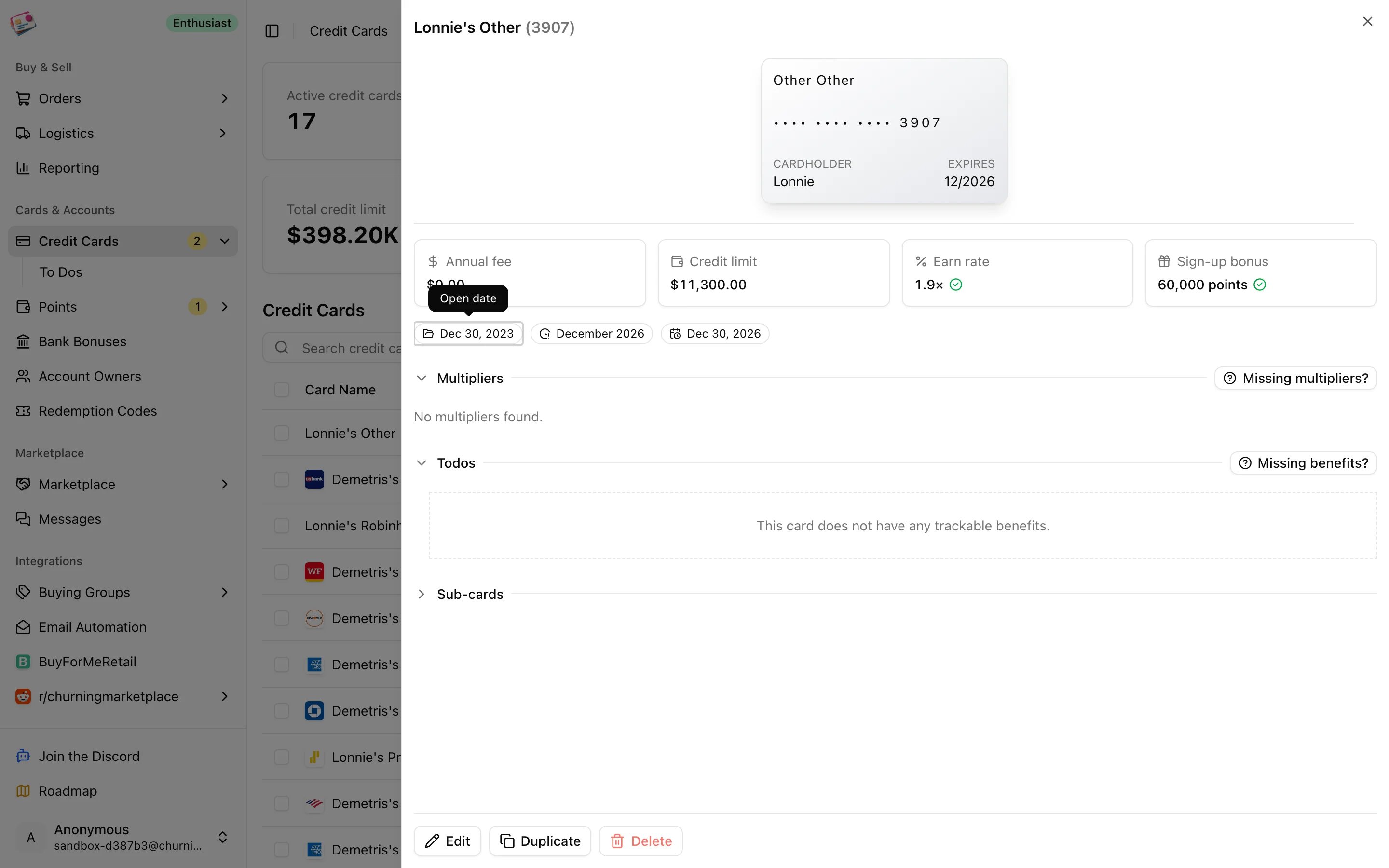
The card detail panel lists the product's category multipliers, like 3× dining, for reference and sorting. They aren't applied to orders on their own; set the order's earn rate to match when a purchase qualifies.
Cards can carry [tags](/orders/overview#tags-notes-and-attachments) on paid plans and notes up to 1,000 characters. **Duplicate** in the row menu copies a card without its last digits.
## Product changes
When you upgrade, downgrade, or sidegrade a card, add the new card and link it under **Product Changes** with **Opened From**. Churning Tracker closes the old card on the new card's open date and links the two, so the detail panel shows the history and the 5/24 count doesn't double count. Both cards must belong to the same owner.
## Closing a card
Set the **Closed Date**. Closed cards get a Closed badge, drop out of To Dos and the renewal count, and are hidden from the order form's card picker unless you turn on **Show closed credit cards**. Deleting a card instead removes it from its orders, so their card earnings drop to zero.
Set a **Planned Close Date** and you'll get an email reminder seven days before.
## Earn rates and card earnings
Each order has one earn rate, copied from the card's default when you pick the card, and editable per order under **Additional Details**. Earnings are worked out from that rate:
* **Points cards** from Amex, Chase, Capital One, Citi, Wells Fargo, U.S. Bank, and Bilt: order total × earn rate × your [valuation](/cards/points#point-valuations) for that program. Other issuers use 1 cent per point.
* **Cash back cards**: order total × earn rate as a percentage, so 2× means 2%.
* Cards marked as excluded from profits earn nothing.
The card detail panel lists the product's category multipliers, like 3× dining, for reference and sorting. They aren't applied to orders on their own; set the order's earn rate to match when a purchase qualifies.
 ## Sub-cards
Authorized user, employee, and virtual cards sit under their parent card. Open a card's detail panel, expand **Sub-cards**, and click **Add sub-card**. Give it a nickname or last digits, a type, and an optional spend requirement and deadline.
On an order, picking a card that has sub-cards reveals a **Sub-card** picker. The order still belongs to the parent card, so the parent's earn rate and exclusion setting decide the earnings, and the parent's spending includes its sub-cards. Sub-cards are a paid feature with a per-card limit; see [Plans and limits](/plans-and-limits).
## Reading the table
* **Badges** on the card name: Closed, Due Soon (payment due within five days), Closing (planned close within seven days), Renewing (anniversary within 14 days).
* **Spending** is the total of non-cancelled buying group, gift card, and resale orders on the card. Hover for the breakdown.
* **Expected Renewal** is the next anniversary of the opened date.
* **Multipliers** lets you pick a spending category and sort cards by their rate for it.
* **Filters**: tags, issuer, personal or business, owner, included or excluded from profits, hide closed cards, and sign-up bonus not yet received.
* **Bulk actions**: update tags, delete. Import and export are covered in [CSV imports](/imports/csv-imports) and [CSV exports](/csv-exports).
Recurring benefits on your cards are tracked on the [To Dos page](/cards/card-benefits).
This documentation is built and hosted on [Mintlify](https://mintlify.com), a developer documentation platform.
## Sub-cards
Authorized user, employee, and virtual cards sit under their parent card. Open a card's detail panel, expand **Sub-cards**, and click **Add sub-card**. Give it a nickname or last digits, a type, and an optional spend requirement and deadline.
On an order, picking a card that has sub-cards reveals a **Sub-card** picker. The order still belongs to the parent card, so the parent's earn rate and exclusion setting decide the earnings, and the parent's spending includes its sub-cards. Sub-cards are a paid feature with a per-card limit; see [Plans and limits](/plans-and-limits).
## Reading the table
* **Badges** on the card name: Closed, Due Soon (payment due within five days), Closing (planned close within seven days), Renewing (anniversary within 14 days).
* **Spending** is the total of non-cancelled buying group, gift card, and resale orders on the card. Hover for the breakdown.
* **Expected Renewal** is the next anniversary of the opened date.
* **Multipliers** lets you pick a spending category and sort cards by their rate for it.
* **Filters**: tags, issuer, personal or business, owner, included or excluded from profits, hide closed cards, and sign-up bonus not yet received.
* **Bulk actions**: update tags, delete. Import and export are covered in [CSV imports](/imports/csv-imports) and [CSV exports](/csv-exports).
Recurring benefits on your cards are tracked on the [To Dos page](/cards/card-benefits).
This documentation is built and hosted on [Mintlify](https://mintlify.com), a developer documentation platform.