> ## Documentation Index
> Fetch the complete documentation index at: https://docs.churningtracker.com/llms.txt
> Use this file to discover all available pages before exploring further.
# Chrome extension
> Import Best Buy, Amazon, and Walmart orders from your order history in a couple of clicks.
The Churning Tracker Chrome extension reads the order history pages at Best Buy, Amazon, and Walmart and sends the orders you pick into your account, line items and tracking numbers included. It's the way to get Amazon and Walmart orders in, since their emails no longer carry item details.
 ## Set it up
Get it from the [Chrome Web Store](https://chromewebstore.google.com/detail/churning-tracker/gbmhcddgjhbelgngfikgbincakbcdgpl).
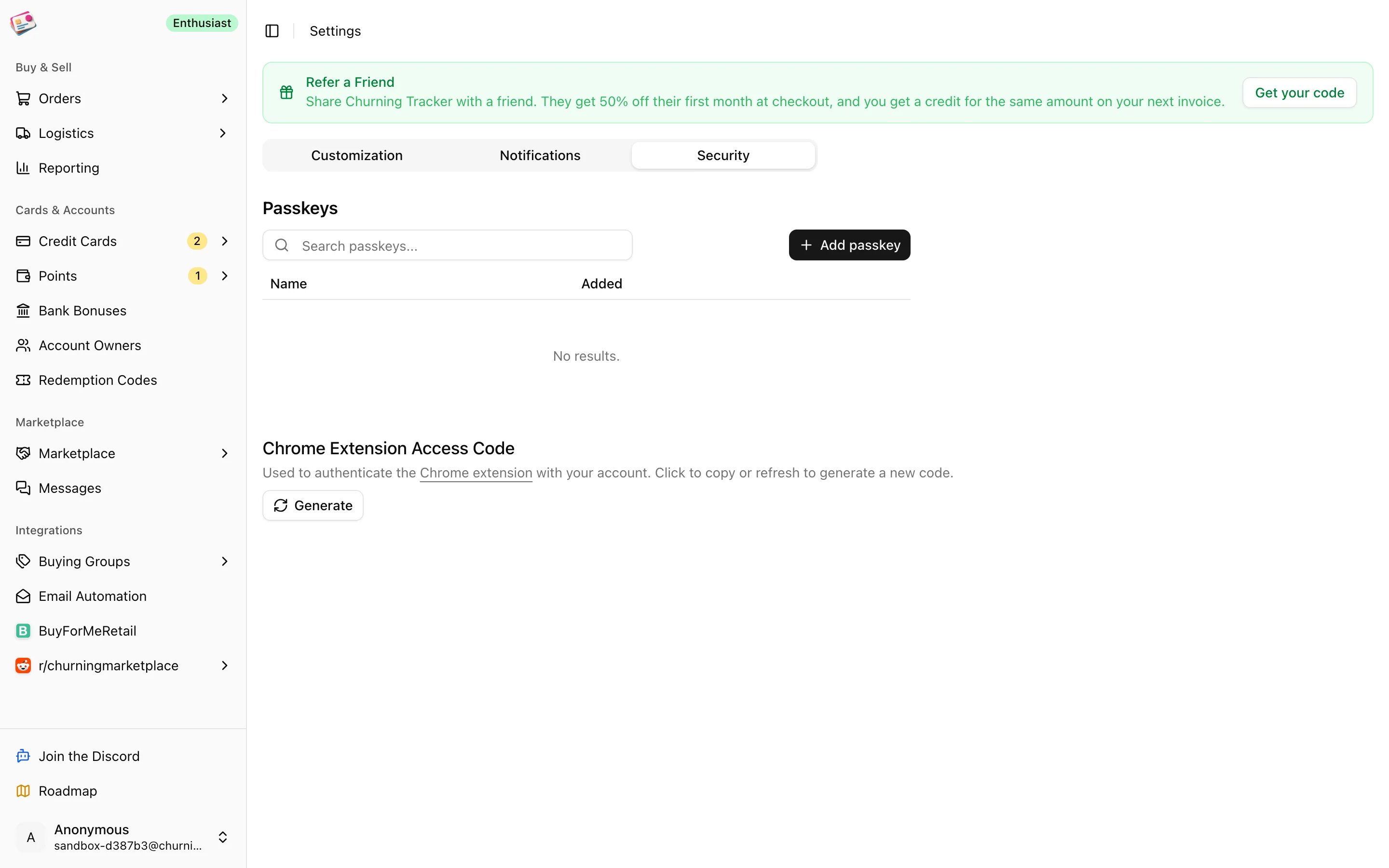
In Churning Tracker, go to **Settings → Security** and click **Generate** under Chrome Extension Access Code. Click the code to copy it. The refresh icon makes a new one and invalidates the old.
Open the extension popup, click the gear icon, and enter your Churning Tracker account email and the access code. Pick a default buying group if most of your orders go to one. Click **Save**; it tests the connection first.
## Set it up
Get it from the [Chrome Web Store](https://chromewebstore.google.com/detail/churning-tracker/gbmhcddgjhbelgngfikgbincakbcdgpl).
In Churning Tracker, go to **Settings → Security** and click **Generate** under Chrome Extension Access Code. Click the code to copy it. The refresh icon makes a new one and invalidates the old.
Open the extension popup, click the gear icon, and enter your Churning Tracker account email and the access code. Pick a default buying group if most of your orders go to one. Click **Save**; it tests the connection first.
 ## Import orders
In the popup, click **Order Sync** and pick a retailer; it opens the right page for you. Or open the popup while you're already on Best Buy's purchase history, Amazon's orders page, or Walmart's orders page.
The popup lists the orders it can see on the page. Tick the ones you want, or **Select All**. If the list is empty, scroll the page so more orders load and click **Refresh**.
Choose the buying group the orders belong to. Leave **Auto-infer credit card** on to match the card from the last digits shown on the page, and **Auto-infer retailer account** on to match your [retailer account](/cards/retailers) by the email you're logged in with. Tick **Only update metadata** if the orders already exist and you just want to update the card, account, and earn rate.
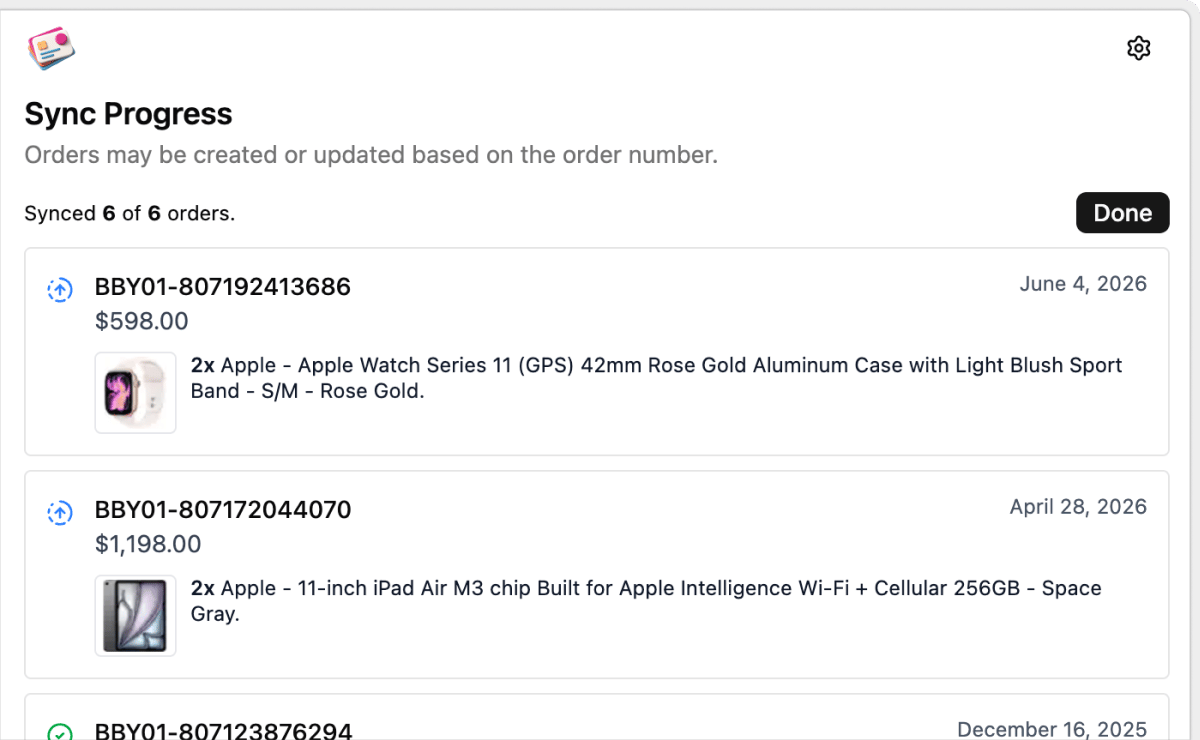
Click **Sync Orders**. Each order shows whether it was created or updated. A yellow icon means the retailer page needs a reload before trying again.
## What gets imported
Order number and date, each line item with its description, quantity, unit price, and model, shipping, tax, and discounts, tracking numbers with their carriers, and the card's last digits when auto-infer is on. Amazon orders also pick up the earn rate shown on the page. New orders are created as buying group orders with the status Ordered, or Shipped if they already have tracking. Walmart orders that were cancelled come in as Cancelled.
If an order with the same retailer and order number already exists, it's updated rather than duplicated. Line items, fees, tracking, card, and buying group are replaced. Notes, cashback, each line's expected payout, and the order's status are kept.
The extension only creates buying group orders. Enter gift card and cashback purchases by hand, or through [email automation](/imports/email-automation) where the retailer is supported.
This documentation is built and hosted on [Mintlify](https://mintlify.com), a developer documentation platform.
## Import orders
In the popup, click **Order Sync** and pick a retailer; it opens the right page for you. Or open the popup while you're already on Best Buy's purchase history, Amazon's orders page, or Walmart's orders page.
The popup lists the orders it can see on the page. Tick the ones you want, or **Select All**. If the list is empty, scroll the page so more orders load and click **Refresh**.
Choose the buying group the orders belong to. Leave **Auto-infer credit card** on to match the card from the last digits shown on the page, and **Auto-infer retailer account** on to match your [retailer account](/cards/retailers) by the email you're logged in with. Tick **Only update metadata** if the orders already exist and you just want to update the card, account, and earn rate.
Click **Sync Orders**. Each order shows whether it was created or updated. A yellow icon means the retailer page needs a reload before trying again.
## What gets imported
Order number and date, each line item with its description, quantity, unit price, and model, shipping, tax, and discounts, tracking numbers with their carriers, and the card's last digits when auto-infer is on. Amazon orders also pick up the earn rate shown on the page. New orders are created as buying group orders with the status Ordered, or Shipped if they already have tracking. Walmart orders that were cancelled come in as Cancelled.
If an order with the same retailer and order number already exists, it's updated rather than duplicated. Line items, fees, tracking, card, and buying group are replaced. Notes, cashback, each line's expected payout, and the order's status are kept.
The extension only creates buying group orders. Enter gift card and cashback purchases by hand, or through [email automation](/imports/email-automation) where the retailer is supported.
This documentation is built and hosted on [Mintlify](https://mintlify.com), a developer documentation platform.