> ## Documentation Index
> Fetch the complete documentation index at: https://docs.churningtracker.com/llms.txt
> Use this file to discover all available pages before exploring further.
# Email automation
> Connect your Gmail inbox and let retailer emails create and update orders for you.
Retailers email you a confirmation, a shipping notice, and a delivery notice for every order. Email automation reads those from a connected Gmail mailbox and turns them into orders, adds tracking numbers as they ship, and marks orders delivered or cancelled. It's available on paid plans under **Integrations → Email Automation**.
 ## Connect a mailbox
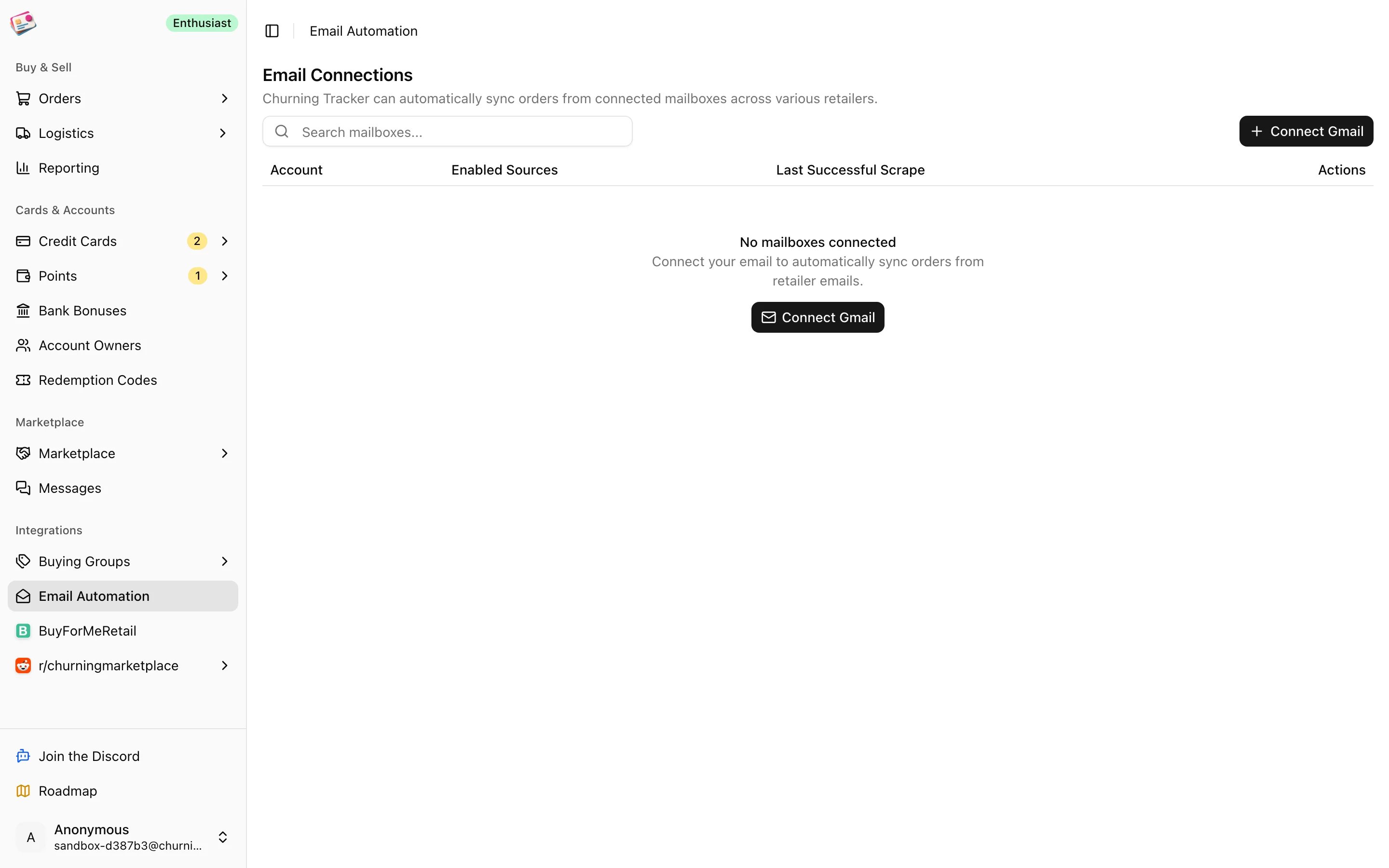
Click **Connect Gmail** and sign in with Google. Churning Tracker asks for read-only access to your mail. Only Gmail is supported.
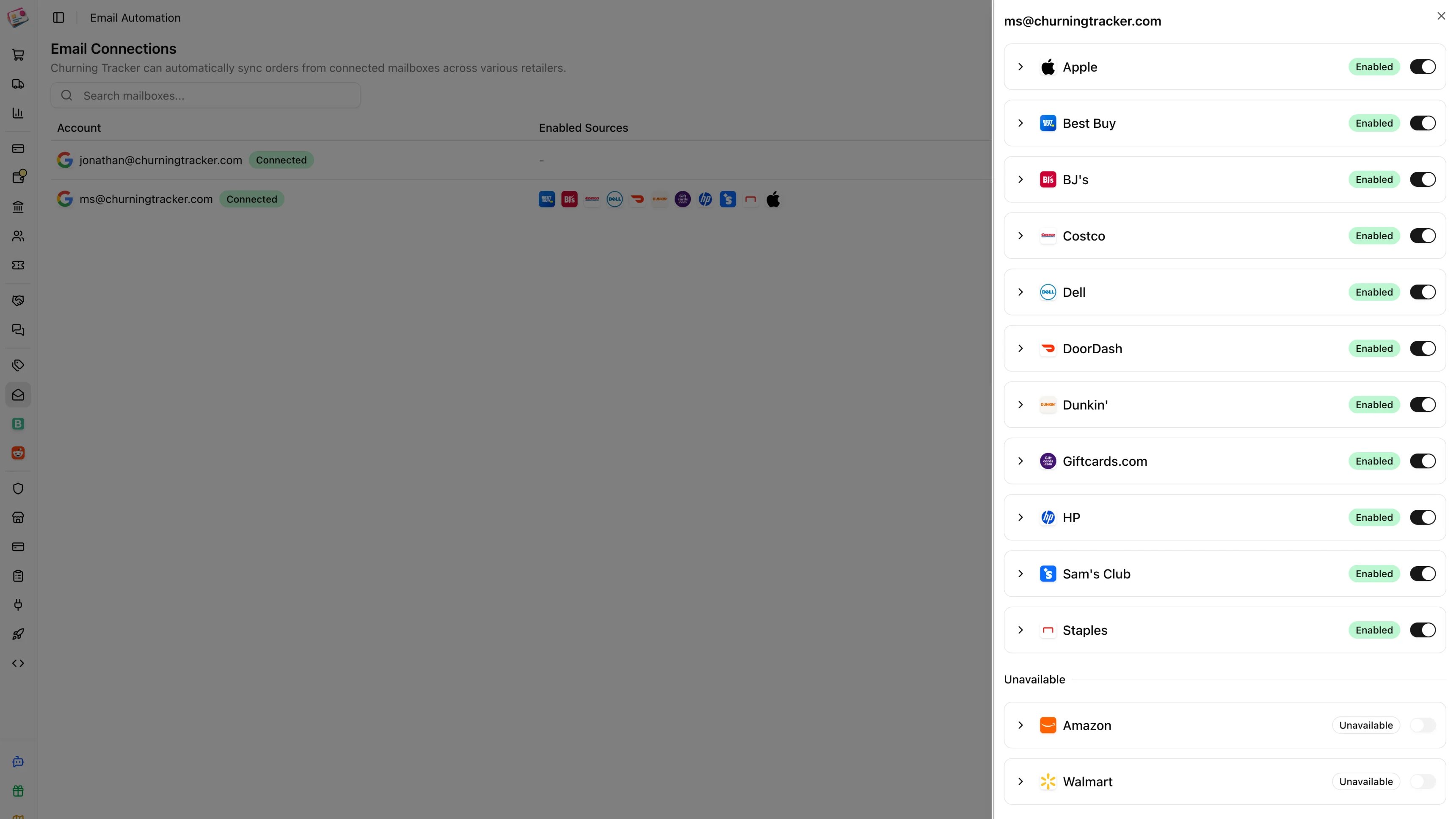
Click the mailbox to open its sources. Every retailer starts off; switch on the ones you order from.
Expand a retailer to choose a **Default Buying Group** for orders it creates (BuyForMeRetail if you leave it empty), a **Default Credit Card**, and whether to **Infer retailer account** from the email address the order was sent to. Giftcards.com asks for a default resale platform instead of a buying group.
Click **Scrape** on the mailbox row, pick the retailers, and go. A manual scrape covers the last three weeks. The first scheduled scrape afterward reaches back a year.
## Connect a mailbox
Click **Connect Gmail** and sign in with Google. Churning Tracker asks for read-only access to your mail. Only Gmail is supported.
Click the mailbox to open its sources. Every retailer starts off; switch on the ones you order from.
Expand a retailer to choose a **Default Buying Group** for orders it creates (BuyForMeRetail if you leave it empty), a **Default Credit Card**, and whether to **Infer retailer account** from the email address the order was sent to. Giftcards.com asks for a default resale platform instead of a buying group.
Click **Scrape** on the mailbox row, pick the retailers, and go. A manual scrape covers the last three weeks. The first scheduled scrape afterward reaches back a year.
 Each plan allows a number of mailboxes and a sync rhythm: Enthusiast mailboxes are checked once a day, Whale mailboxes every hour. See [Plans and limits](/plans-and-limits). Only emails in the inbox are read, so don't archive retailer emails before they've been picked up.
## Forward from another mailbox
Only Gmail can be connected, but your retailer emails don't have to land there first. Create a free Gmail account, have your existing mailbox forward retailer emails to it automatically, and connect that Gmail account here.
How you forward matters. Churning Tracker finds emails by the retailer's sender address and, for some retailers, the subject line, so the copies in Gmail need to arrive with both unchanged. Account-level forwarding in iCloud Mail and Outlook.com delivers the original message as-is. A rule that *forwards* in Outlook rewrites the sender to you and prefixes the subject with FW:, and those emails are never found; a rule that *redirects* keeps the headers. Retailer account inference still works either way, since the **To** address stays the one the retailer sent to.
* [iCloud Mail: Automatically forward email](https://support.apple.com/guide/icloud/automatically-forward-email-mm6b1a3960/icloud). Forwards everything, or you can forward only certain messages with a rule.
* [Outlook.com: Turn on or off automatic forwarding](https://support.microsoft.com/en-us/outlook/turn-on-or-off-automatic-forwarding-in-outlook-com). Forwards everything. Microsoft asks you to turn on two-step verification first.
* [Outlook: Use rules to automatically forward messages](https://support.microsoft.com/en-us/outlook/mail/use-rules-to-automatically-forward-messages). For forwarding only retailer emails. Choose **Redirect to**, not **Forward to**.
Leave the forwarded copies in the Gmail inbox. A Gmail filter that archives them on arrival hides them from the scraper.
## Supported retailers
| Retailer | What it handles |
| - | - |
| Best Buy | Confirmations (online and in store), shipped, delivered, cancelled, price-match credits, Xbox Game Pass codes |
| Apple | Confirmations, shipped, delivered, cancelled |
| Sam's Club | Confirmations, shipped, delivered, cancelled |
| Staples | Confirmations, shipped, delivered, cancelled |
| Costco | Confirmations, shipped, cancelled |
| Dell | Confirmations, shipped, delivered (Dell's shipping emails carry no tracking numbers) |
| HP | Confirmations, shipped, delivered |
| BJ's | Orders are created from the "ready to ship" email |
| Giftcards.com | Confirmations, created as gift card orders |
| DoorDash, Dunkin' | Gift card codes only, saved as redemption codes |
Amazon and Walmart are listed as unavailable because their emails no longer include item details. Use the [Chrome extension](/imports/chrome-extension) for those.
## What happens to each email
* **Confirmation**: creates a buying group order with the status Ordered and the source Email Automation, under the retailer's default group. The credit card is matched by the last digits in the email, falling back to the default card. The retailer account is matched to the address the email came to, when inference is on. If an order with that retailer and order number already exists, the email is skipped.
* **Shipped**: adds the tracking numbers to the order and moves it to Shipped. Tracking then updates on its own; see [Shipments](/shipments).
* **Delivered**: moves the order to Delivered.
* **Cancelled**: sets the order to Cancelled.
* **Credit**: adds a price-match credit to the order's discount.
* **Codes**: saved under [Redemption codes](/cards/redemption-codes), skipping any you already have.
A mailbox's row shows which sources are on and when it last synced successfully. From the row menu you can **Test connection** or **Disconnect**, which removes the stored access; connecting the same address again restores its settings.
Select every retailer when you run a manual scrape. A partial scrape still moves the mailbox's "last synced" point forward, so the next scheduled run won't go back for the retailers you left out.
This documentation is built and hosted on [Mintlify](https://mintlify.com), a developer documentation platform.
Each plan allows a number of mailboxes and a sync rhythm: Enthusiast mailboxes are checked once a day, Whale mailboxes every hour. See [Plans and limits](/plans-and-limits). Only emails in the inbox are read, so don't archive retailer emails before they've been picked up.
## Forward from another mailbox
Only Gmail can be connected, but your retailer emails don't have to land there first. Create a free Gmail account, have your existing mailbox forward retailer emails to it automatically, and connect that Gmail account here.
How you forward matters. Churning Tracker finds emails by the retailer's sender address and, for some retailers, the subject line, so the copies in Gmail need to arrive with both unchanged. Account-level forwarding in iCloud Mail and Outlook.com delivers the original message as-is. A rule that *forwards* in Outlook rewrites the sender to you and prefixes the subject with FW:, and those emails are never found; a rule that *redirects* keeps the headers. Retailer account inference still works either way, since the **To** address stays the one the retailer sent to.
* [iCloud Mail: Automatically forward email](https://support.apple.com/guide/icloud/automatically-forward-email-mm6b1a3960/icloud). Forwards everything, or you can forward only certain messages with a rule.
* [Outlook.com: Turn on or off automatic forwarding](https://support.microsoft.com/en-us/outlook/turn-on-or-off-automatic-forwarding-in-outlook-com). Forwards everything. Microsoft asks you to turn on two-step verification first.
* [Outlook: Use rules to automatically forward messages](https://support.microsoft.com/en-us/outlook/mail/use-rules-to-automatically-forward-messages). For forwarding only retailer emails. Choose **Redirect to**, not **Forward to**.
Leave the forwarded copies in the Gmail inbox. A Gmail filter that archives them on arrival hides them from the scraper.
## Supported retailers
| Retailer | What it handles |
| - | - |
| Best Buy | Confirmations (online and in store), shipped, delivered, cancelled, price-match credits, Xbox Game Pass codes |
| Apple | Confirmations, shipped, delivered, cancelled |
| Sam's Club | Confirmations, shipped, delivered, cancelled |
| Staples | Confirmations, shipped, delivered, cancelled |
| Costco | Confirmations, shipped, cancelled |
| Dell | Confirmations, shipped, delivered (Dell's shipping emails carry no tracking numbers) |
| HP | Confirmations, shipped, delivered |
| BJ's | Orders are created from the "ready to ship" email |
| Giftcards.com | Confirmations, created as gift card orders |
| DoorDash, Dunkin' | Gift card codes only, saved as redemption codes |
Amazon and Walmart are listed as unavailable because their emails no longer include item details. Use the [Chrome extension](/imports/chrome-extension) for those.
## What happens to each email
* **Confirmation**: creates a buying group order with the status Ordered and the source Email Automation, under the retailer's default group. The credit card is matched by the last digits in the email, falling back to the default card. The retailer account is matched to the address the email came to, when inference is on. If an order with that retailer and order number already exists, the email is skipped.
* **Shipped**: adds the tracking numbers to the order and moves it to Shipped. Tracking then updates on its own; see [Shipments](/shipments).
* **Delivered**: moves the order to Delivered.
* **Cancelled**: sets the order to Cancelled.
* **Credit**: adds a price-match credit to the order's discount.
* **Codes**: saved under [Redemption codes](/cards/redemption-codes), skipping any you already have.
A mailbox's row shows which sources are on and when it last synced successfully. From the row menu you can **Test connection** or **Disconnect**, which removes the stored access; connecting the same address again restores its settings.
Select every retailer when you run a manual scrape. A partial scrape still moves the mailbox's "last synced" point forward, so the next scheduled run won't go back for the retailers you left out.
This documentation is built and hosted on [Mintlify](https://mintlify.com), a developer documentation platform.