> ## Documentation Index
> Fetch the complete documentation index at: https://docs.churningtracker.com/llms.txt
> Use this file to discover all available pages before exploring further.
# Cashback orders
> Track portal cashback and points on their own orders, or attach them to any other order.
Cashback and portal rewards can be tracked two ways. A **Cashback / Rewards** order is for a purchase whose whole point was the portal reward. For a buying group, gift card, or resale order that also went through a portal, add the reward to that order instead, so it counts toward the order's profit. Both use the same fields.
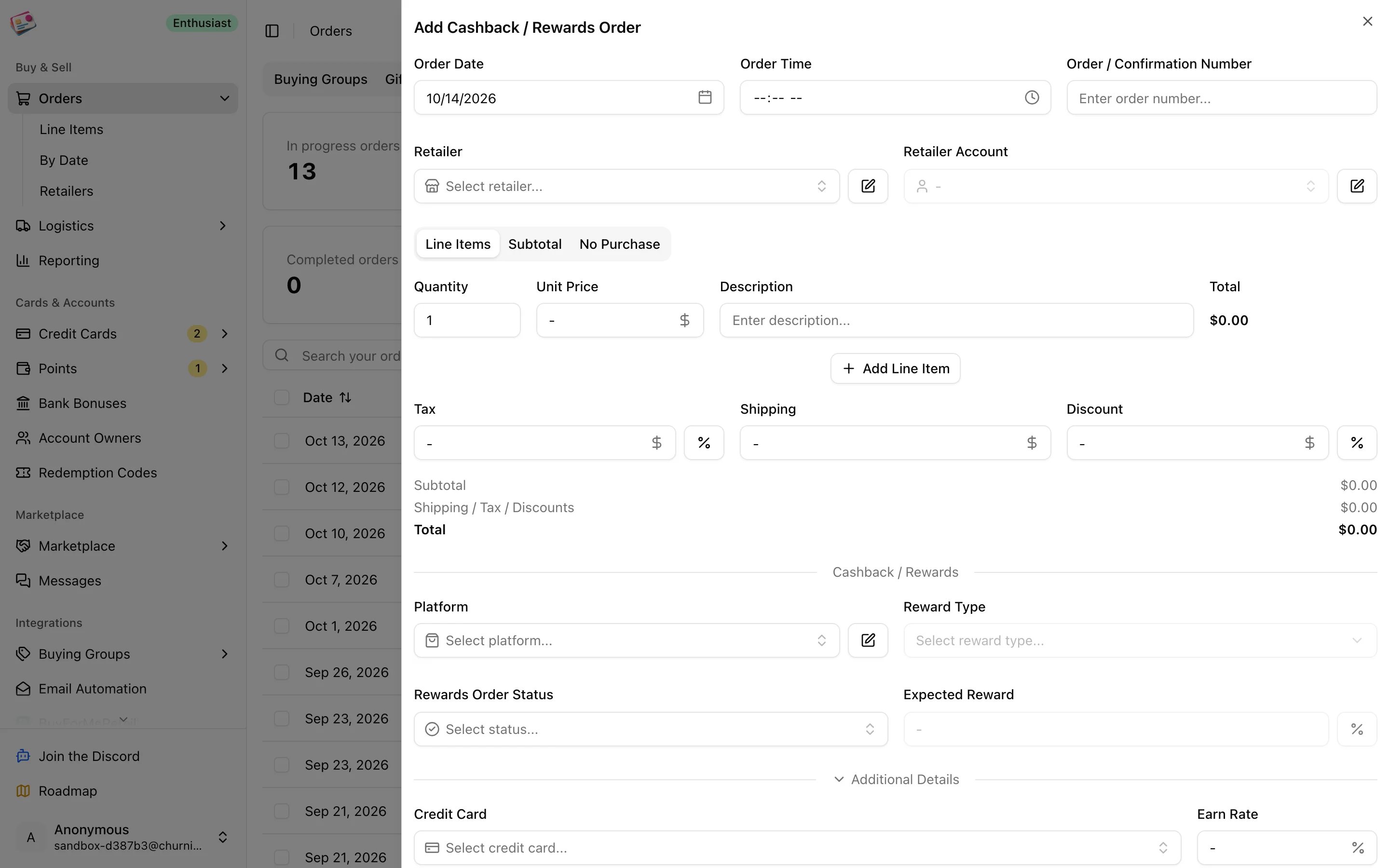 ## Add a cashback order
On the **Cashback / Rewards** tab, click **Add order**.
Order date, order number, retailer, retailer account, and the items with their prices.
Choose Rakuten, Capital One Shopping, Chase Shopping Portal, AAdvantage eShopping, Rove Miles, TopCashback, ShopBack, or a custom portal of your own.
The reward type, cash or points and miles, follows the portal; some portals offer both. Enter the expected reward as an amount, or use the % toggle to enter the portal's rate and let the form work it out from the order total. The status defaults to Ordered.
Pick the credit card under **Additional Details**, and add codes, tags, notes, or attachments if you need them.
Click **Add Order**.
To attach cashback to another kind of order, open the **Cashback / Rewards** section on that order's form and fill in the same fields. Clearing the portal removes the whole section.
## Statuses
| Status | Meaning |
| - | - |
| Ordered | Purchase made, reward not yet showing |
| Pending | The portal shows the reward as pending |
| Posted | The reward has posted |
| Issue | Something needs attention |
| Cancelled | Not going ahead |
| Ineligible | The portal declined the reward |
You set these yourself as the portal updates. Once the status is Posted, the reward field on the form is labeled as the actual amount.
## How rewards count
* **Expected profit** on an order includes rewards that are Ordered or Pending.
* **Actual profit** includes rewards once they're Posted.
* Points rewards are valued with your [point valuation](/cards/points#point-valuations) for the matching program on Rakuten, Capital One Shopping, Chase, AAdvantage eShopping, and Rove Miles. Other portals' points use 1 cent per point.
The Cashback tab has no payout or profit columns of its own; its overview counts in-progress orders and pending and posted rewards. Cashback orders don't appear in [Reporting](/reporting), and cashback can't be imported by CSV, though it can be [exported](/csv-exports).
This documentation is built and hosted on [Mintlify](https://mintlify.com), a developer documentation platform.
## Add a cashback order
On the **Cashback / Rewards** tab, click **Add order**.
Order date, order number, retailer, retailer account, and the items with their prices.
Choose Rakuten, Capital One Shopping, Chase Shopping Portal, AAdvantage eShopping, Rove Miles, TopCashback, ShopBack, or a custom portal of your own.
The reward type, cash or points and miles, follows the portal; some portals offer both. Enter the expected reward as an amount, or use the % toggle to enter the portal's rate and let the form work it out from the order total. The status defaults to Ordered.
Pick the credit card under **Additional Details**, and add codes, tags, notes, or attachments if you need them.
Click **Add Order**.
To attach cashback to another kind of order, open the **Cashback / Rewards** section on that order's form and fill in the same fields. Clearing the portal removes the whole section.
## Statuses
| Status | Meaning |
| - | - |
| Ordered | Purchase made, reward not yet showing |
| Pending | The portal shows the reward as pending |
| Posted | The reward has posted |
| Issue | Something needs attention |
| Cancelled | Not going ahead |
| Ineligible | The portal declined the reward |
You set these yourself as the portal updates. Once the status is Posted, the reward field on the form is labeled as the actual amount.
## How rewards count
* **Expected profit** on an order includes rewards that are Ordered or Pending.
* **Actual profit** includes rewards once they're Posted.
* Points rewards are valued with your [point valuation](/cards/points#point-valuations) for the matching program on Rakuten, Capital One Shopping, Chase, AAdvantage eShopping, and Rove Miles. Other portals' points use 1 cent per point.
The Cashback tab has no payout or profit columns of its own; its overview counts in-progress orders and pending and posted rewards. Cashback orders don't appear in [Reporting](/reporting), and cashback can't be imported by CSV, though it can be [exported](/csv-exports).
This documentation is built and hosted on [Mintlify](https://mintlify.com), a developer documentation platform.