> ## Documentation Index
> Fetch the complete documentation index at: https://docs.churningtracker.com/llms.txt
> Use this file to discover all available pages before exploring further.
# Gift card orders
> Track gift cards you buy to resell, the codes that come with them, and what the reseller paid.
A gift card resale order records cards you bought to sell on. Each line item is a brand and denomination, with the price you paid and the payout you expect from the reseller. The order holds the redemption codes, and payouts close it out the same way as buying group orders.
 ## Add an order
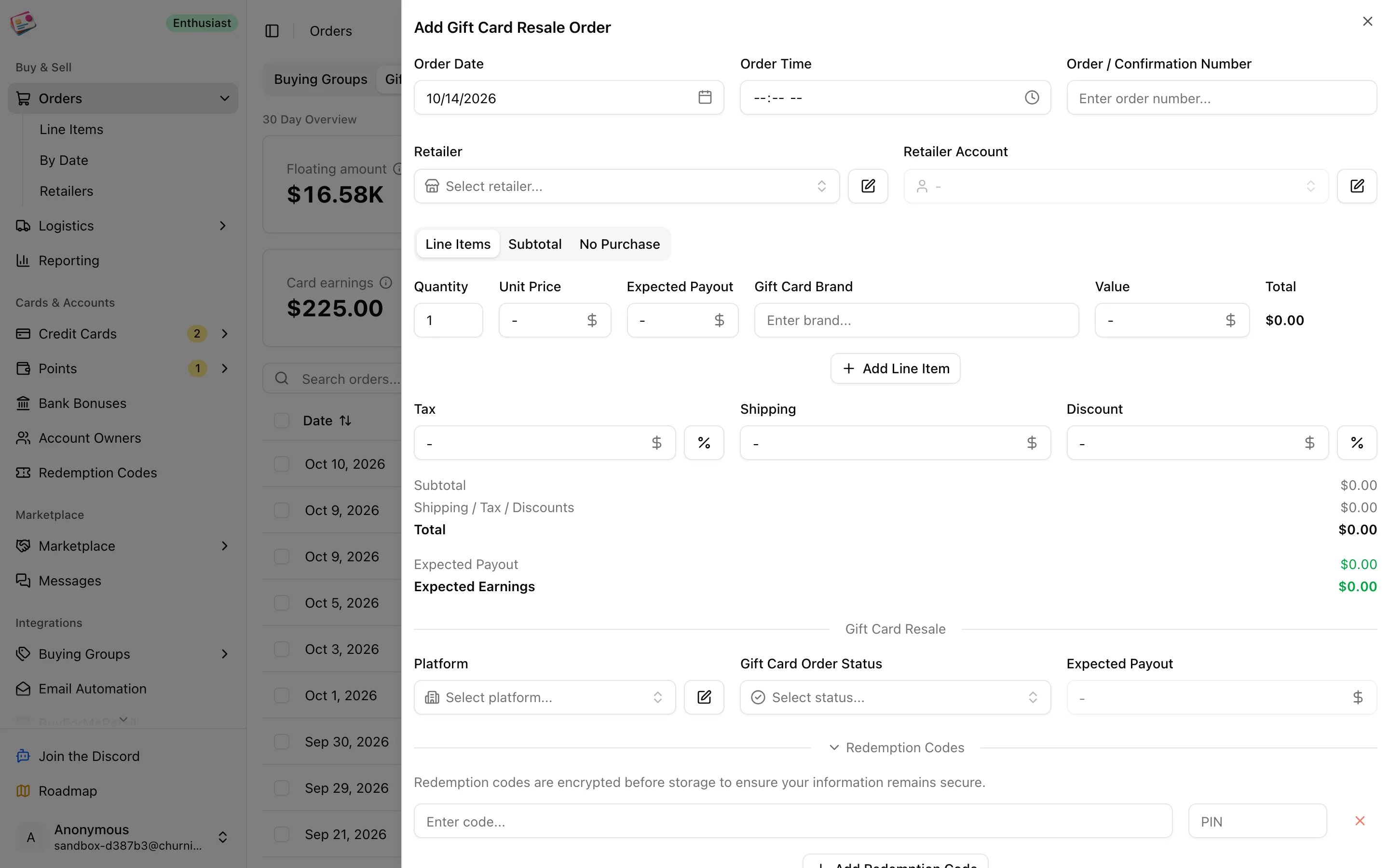
On the **Gift Card Resale** tab, click **Add order**.
Order date, order number, retailer, and retailer account, as on any order.
One line per brand and denomination: quantity, unit price, expected payout per card, the gift card brand, and the card's face value. Every line needs a value greater than zero.
Choose the reseller under **Gift Card Resale**: Aligned Incentives, Card Center, Card Cash, or a custom platform of your own. Status defaults to Ordered.
The **Redemption Codes** section is open by default. Enter each code and PIN; the brand and value come from the line items. See [Redemption codes](/cards/redemption-codes) for bulk entry.
Under **Additional Details**, pick the credit card and adjust the earn rate. If you went through a portal, open **Cashback / Rewards** and add it to the order. Tags and notes are optional.
Click **Add Order**.
Gift card orders have no shipping section and no tax field, since nothing ships. Discounts apply as usual.
## Statuses
| Status | Meaning |
| - | - |
| Ordered | Cards bought, not yet sent to the reseller |
| Submitted | Cards sent to the reseller |
| Partially Paid | Completed payouts cover less than the expected payout |
| Paid | Completed payouts reach the expected payout, within 3% |
| Issue | Something needs attention |
| Cancelled | Not going ahead; excluded from spending and profit |
Partially Paid and Paid are set for you when you record a [payout](/payouts). The rest you set yourself.
## Profit
Expected profit is the expected payout plus card earnings and any cashback, minus what you paid after discounts. Actual profit swaps in the payouts you've recorded and the cashback that has posted. Orders that came in through [email automation](/imports/email-automation) from Giftcards.com arrive with the line items and totals filled in, ready for codes and a payout.
This documentation is built and hosted on [Mintlify](https://mintlify.com), a developer documentation platform.
## Add an order
On the **Gift Card Resale** tab, click **Add order**.
Order date, order number, retailer, and retailer account, as on any order.
One line per brand and denomination: quantity, unit price, expected payout per card, the gift card brand, and the card's face value. Every line needs a value greater than zero.
Choose the reseller under **Gift Card Resale**: Aligned Incentives, Card Center, Card Cash, or a custom platform of your own. Status defaults to Ordered.
The **Redemption Codes** section is open by default. Enter each code and PIN; the brand and value come from the line items. See [Redemption codes](/cards/redemption-codes) for bulk entry.
Under **Additional Details**, pick the credit card and adjust the earn rate. If you went through a portal, open **Cashback / Rewards** and add it to the order. Tags and notes are optional.
Click **Add Order**.
Gift card orders have no shipping section and no tax field, since nothing ships. Discounts apply as usual.
## Statuses
| Status | Meaning |
| - | - |
| Ordered | Cards bought, not yet sent to the reseller |
| Submitted | Cards sent to the reseller |
| Partially Paid | Completed payouts cover less than the expected payout |
| Paid | Completed payouts reach the expected payout, within 3% |
| Issue | Something needs attention |
| Cancelled | Not going ahead; excluded from spending and profit |
Partially Paid and Paid are set for you when you record a [payout](/payouts). The rest you set yourself.
## Profit
Expected profit is the expected payout plus card earnings and any cashback, minus what you paid after discounts. Actual profit swaps in the payouts you've recorded and the cashback that has posted. Orders that came in through [email automation](/imports/email-automation) from Giftcards.com arrive with the line items and totals filled in, ready for codes and a payout.
This documentation is built and hosted on [Mintlify](https://mintlify.com), a developer documentation platform.