> ## Documentation Index
> Fetch the complete documentation index at: https://docs.churningtracker.com/llms.txt
> Use this file to discover all available pages before exploring further.
# Orders
> The four order types, the orders table, and the order details panel.
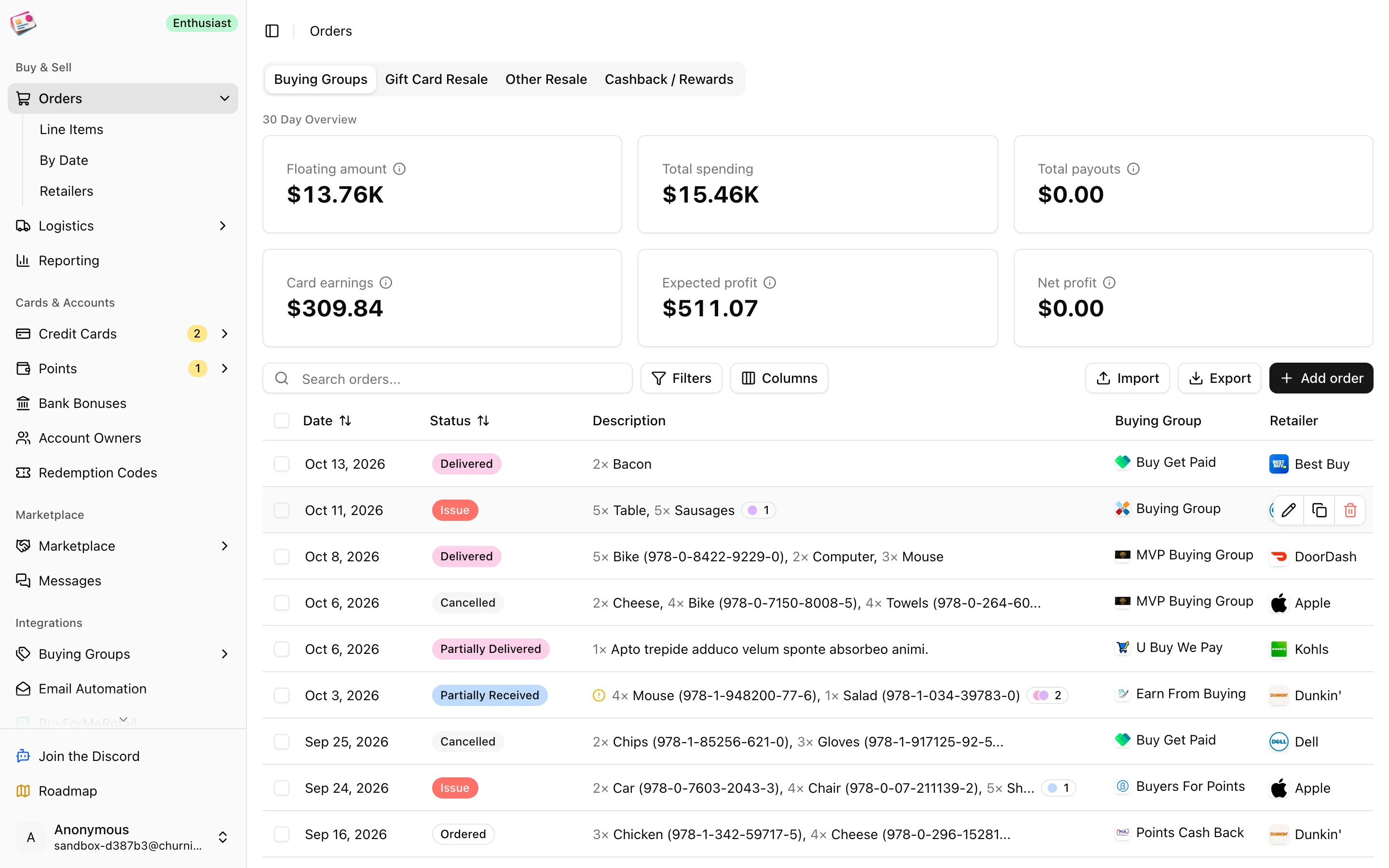
Orders are the center of Churning Tracker. Each one records what you bought, what you paid with, and what you expect to get back. Shipments, payouts, redemption codes, and reporting all hang off orders. The **Orders** page is the first thing you see after signing in.
 ## Order types
The tabs across the top switch between four kinds of order. Each has its own fields, statuses, and table.
| Tab | For | Details |
| - | - | - |
| Buying Groups | Items you buy to ship to a buying group for a payout | [Buying group orders](/orders/buying-group-orders) |
| Gift Card Resale | Gift cards you buy to sell on to a reseller | [Gift card orders](/orders/gift-card-orders) |
| Other Resale | Inventory you flip yourself on eBay or elsewhere | [Resale orders](/orders/resale-orders) |
| Cashback / Rewards | Purchases made for portal cashback or points | [Cashback orders](/orders/cashback-orders) |
All four share the same bones: an order date, a retailer and optional retailer account, line items with quantity and price, shipping, tax, and discount, and the credit card you paid with. Portal cashback can be attached to any of them.
## Adding orders
Click **Add order** on any tab to enter one by hand; the type pages above walk through each form. To bring orders in from elsewhere, see [CSV imports](/imports/csv-imports), the [Chrome extension](/imports/chrome-extension), and [email automation](/imports/email-automation). The **Source** column records which one created each order.
An order is identified by its retailer and order number. Saving a second order with the same pair is rejected, and the extension and email automation update the existing order instead of creating another.
## The 30 day overview
The cards above the table summarize the last 30 days of orders on that tab:
| Card | What it counts |
| - | - |
| Floating amount | What you've spent on in-progress orders, minus payouts already received on them |
| Total spending | Order totals, excluding cancelled orders |
| Total payouts | Payouts linked to paid orders |
| Card earnings | The estimated value of points earned, using your valuations |
| Expected profit | Expected payout plus card earnings and cashback, minus cost, for orders with an expected payout |
| Net profit | The same with actual payouts, for paid orders |
[Reporting](/reporting) shows the same numbers over any date range. The Cashback tab shows all-time counts of pending and posted rewards instead.
## Working with the table
* **Search** matches retailer, order number, notes, line item description, and tracking number. A model number or a redemption code matches when typed in full.
* **Filters** cover order date, buying group or platform, status, retailer, order source, retailer account, credit card and sub-card, tags, and hiding cancelled orders.
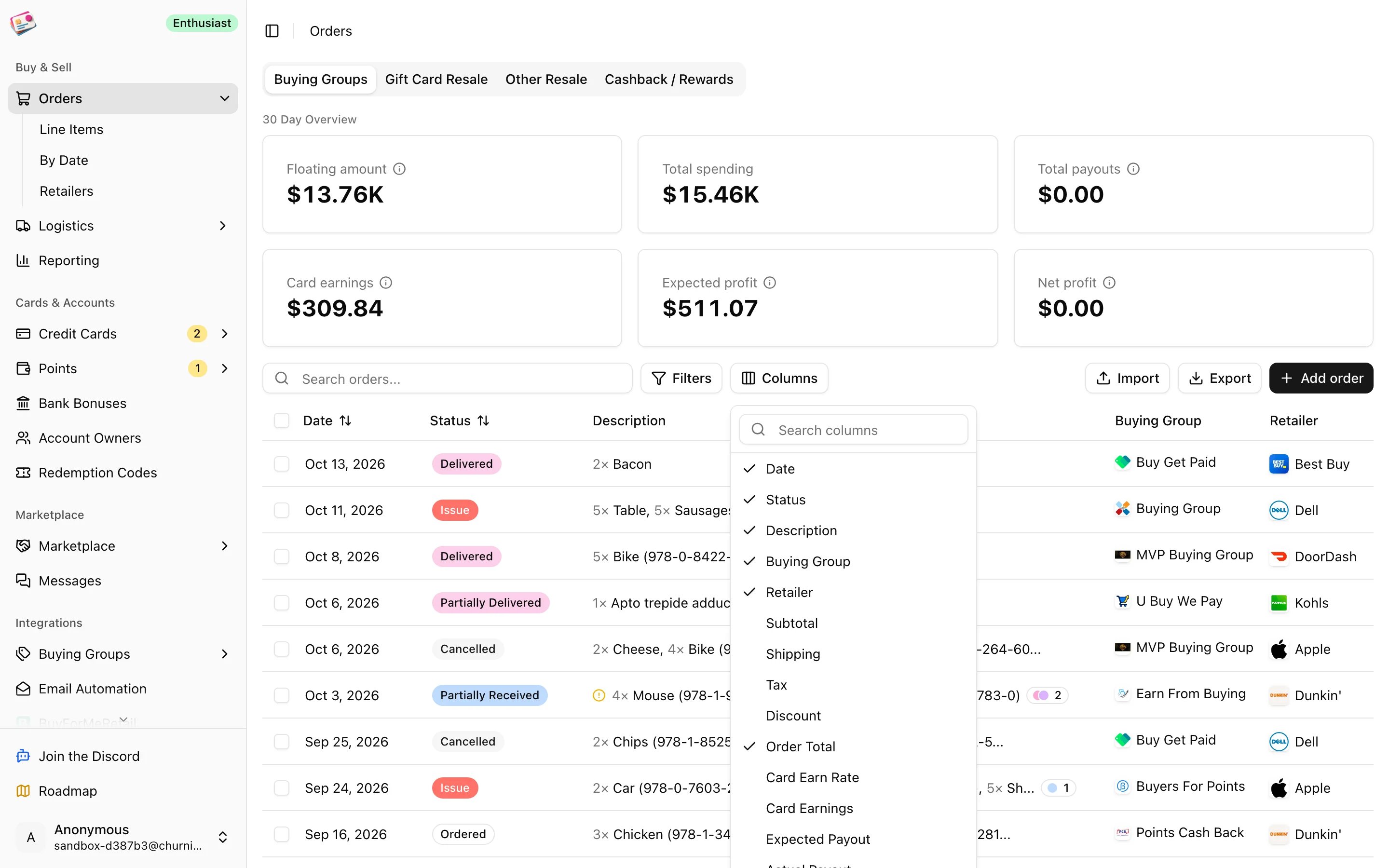
* **Columns** opens a picker. Many columns are hidden by default, including subtotal, tax, shipping, card earn rate, card earnings, expected and actual payout, retailer account, credit card, source, order number, tracking numbers, and notes. Money columns total at the bottom. The **Show base profit** switch at the bottom of the picker shows profit before card earnings and cashback.
* **Inline edits**: date, status, shipping, tax, discount, card earn rate, expected payout, and reward can be changed in place.
* **Row actions** on hover: edit, submit tracking (buying group orders with unsubmitted tracking), duplicate, delete. Duplicate opens the form pre-filled without the order number, tracking numbers, or codes.
Hover a profit cell to see how it was worked out: order total, payout, card earnings with the rate and valuation, cashback, and the resulting profit and margin.
## Order types
The tabs across the top switch between four kinds of order. Each has its own fields, statuses, and table.
| Tab | For | Details |
| - | - | - |
| Buying Groups | Items you buy to ship to a buying group for a payout | [Buying group orders](/orders/buying-group-orders) |
| Gift Card Resale | Gift cards you buy to sell on to a reseller | [Gift card orders](/orders/gift-card-orders) |
| Other Resale | Inventory you flip yourself on eBay or elsewhere | [Resale orders](/orders/resale-orders) |
| Cashback / Rewards | Purchases made for portal cashback or points | [Cashback orders](/orders/cashback-orders) |
All four share the same bones: an order date, a retailer and optional retailer account, line items with quantity and price, shipping, tax, and discount, and the credit card you paid with. Portal cashback can be attached to any of them.
## Adding orders
Click **Add order** on any tab to enter one by hand; the type pages above walk through each form. To bring orders in from elsewhere, see [CSV imports](/imports/csv-imports), the [Chrome extension](/imports/chrome-extension), and [email automation](/imports/email-automation). The **Source** column records which one created each order.
An order is identified by its retailer and order number. Saving a second order with the same pair is rejected, and the extension and email automation update the existing order instead of creating another.
## The 30 day overview
The cards above the table summarize the last 30 days of orders on that tab:
| Card | What it counts |
| - | - |
| Floating amount | What you've spent on in-progress orders, minus payouts already received on them |
| Total spending | Order totals, excluding cancelled orders |
| Total payouts | Payouts linked to paid orders |
| Card earnings | The estimated value of points earned, using your valuations |
| Expected profit | Expected payout plus card earnings and cashback, minus cost, for orders with an expected payout |
| Net profit | The same with actual payouts, for paid orders |
[Reporting](/reporting) shows the same numbers over any date range. The Cashback tab shows all-time counts of pending and posted rewards instead.
## Working with the table
* **Search** matches retailer, order number, notes, line item description, and tracking number. A model number or a redemption code matches when typed in full.
* **Filters** cover order date, buying group or platform, status, retailer, order source, retailer account, credit card and sub-card, tags, and hiding cancelled orders.
* **Columns** opens a picker. Many columns are hidden by default, including subtotal, tax, shipping, card earn rate, card earnings, expected and actual payout, retailer account, credit card, source, order number, tracking numbers, and notes. Money columns total at the bottom. The **Show base profit** switch at the bottom of the picker shows profit before card earnings and cashback.
* **Inline edits**: date, status, shipping, tax, discount, card earn rate, expected payout, and reward can be changed in place.
* **Row actions** on hover: edit, submit tracking (buying group orders with unsubmitted tracking), duplicate, delete. Duplicate opens the form pre-filled without the order number, tracking numbers, or codes.
Hover a profit cell to see how it was worked out: order total, payout, card earnings with the rate and valuation, cashback, and the resulting profit and margin.
 ## Bulk actions
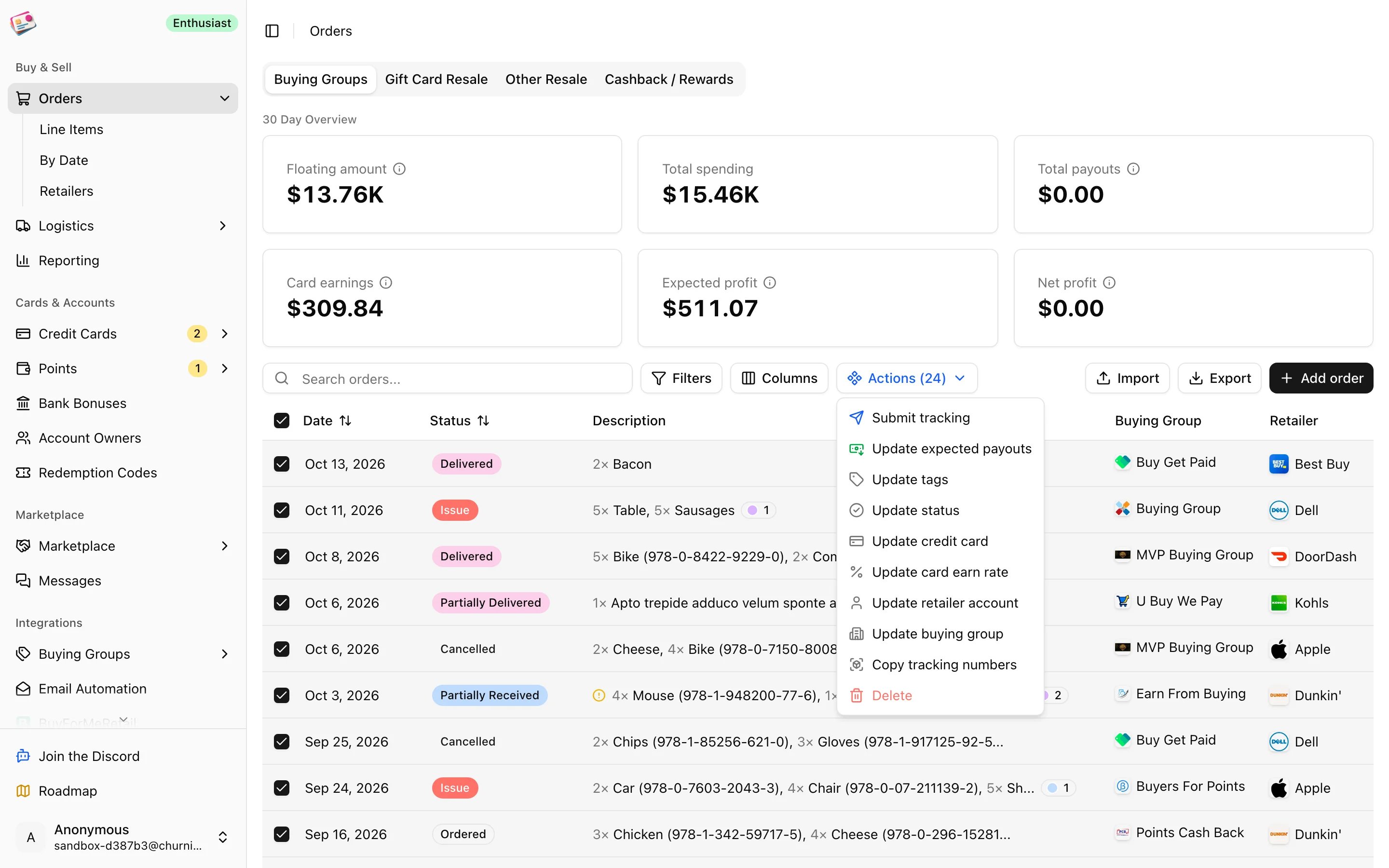
Select rows with the checkboxes and open the **Actions** menu. Depending on the tab you can submit tracking, update expected payouts (grouped by item, one payout per group), update tags, status, credit card and earn rate, retailer account, buying group or platform, copy tracking numbers, or delete.
## Bulk actions
Select rows with the checkboxes and open the **Actions** menu. Depending on the tab you can submit tracking, update expected payouts (grouped by item, one payout per group), update tags, status, credit card and earn rate, retailer account, buying group or platform, copy tracking numbers, or delete.
 ## Order details
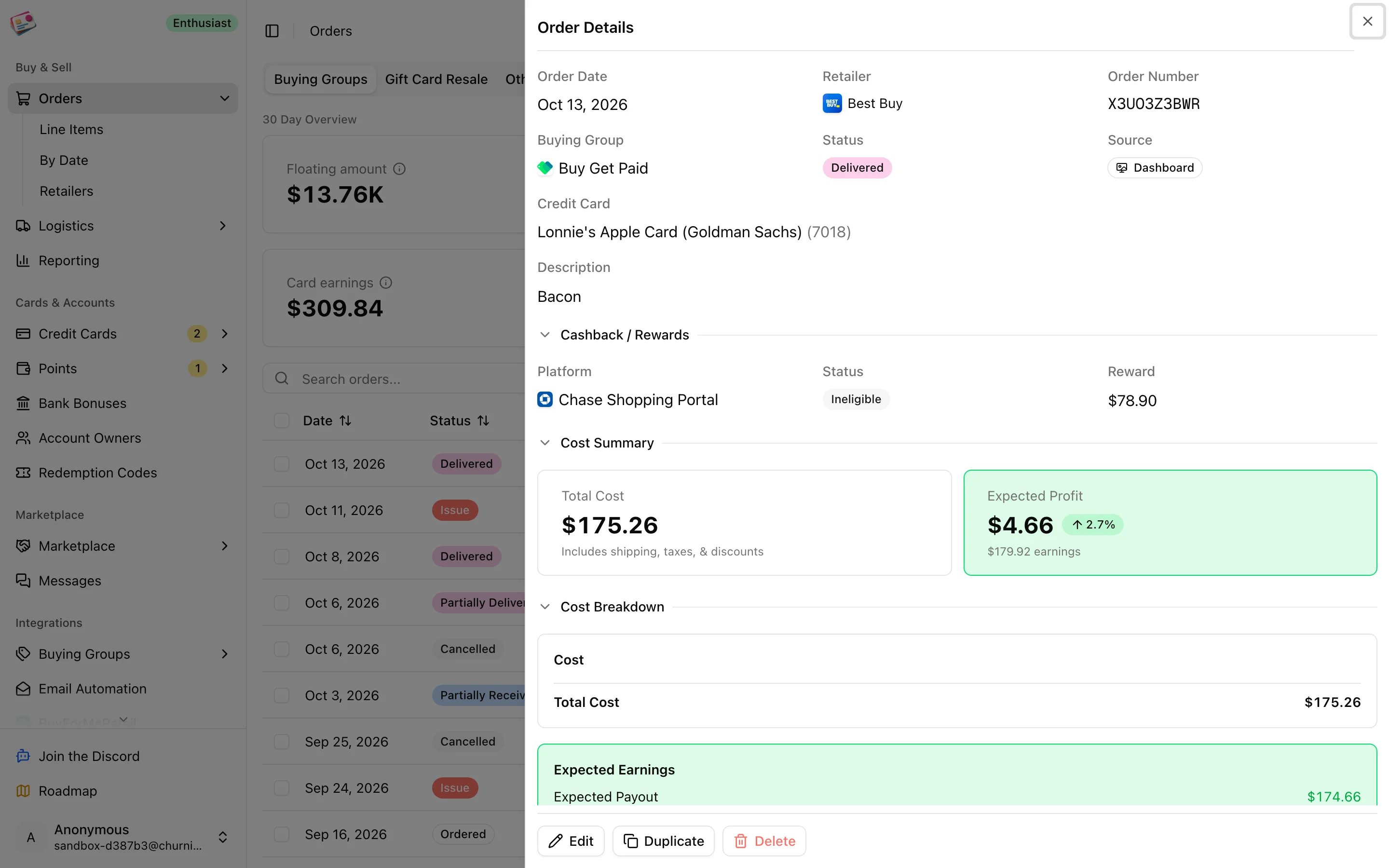
Click a row to open the details panel. From top to bottom: the header fields, tags, cashback, a cost summary with total cost and expected and actual profit, the line items, redemption codes, a full cost and earnings breakdown, payouts linked to the order, tracking numbers, attachments, and notes. **Edit**, **Duplicate**, and **Delete** are at the bottom.
## Order details
Click a row to open the details panel. From top to bottom: the header fields, tags, cashback, a cost summary with total cost and expected and actual profit, the line items, redemption codes, a full cost and earnings breakdown, payouts linked to the order, tracking numbers, attachments, and notes. **Edit**, **Duplicate**, and **Delete** are at the bottom.
 ## Tags, notes, and attachments
* **Tags** are labels you define once and apply to orders, cards, point balances, bank bonuses, and codes. Open any tag picker and choose **Manage tags** to create, rename, recolor, or delete them. Tags are a paid plan feature; see [Plans and limits](/plans-and-limits).
* **Notes** on an order hold up to 1,000 characters and can be edited from the table.
* **Attachments**: up to five files per order, such as receipts or screenshots. The section appears once the order has been saved. Images, PDFs, text and CSV, common video formats, and Office documents are accepted, up to your plan's size limit.
## Other views
Under **Orders** in the sidebar, **Line Items** lists every line item across orders as its own row, and **By Date** groups orders by day. **Retailers** is covered in [Retailers](/cards/retailers).
This documentation is built and hosted on [Mintlify](https://mintlify.com), a developer documentation platform.
## Tags, notes, and attachments
* **Tags** are labels you define once and apply to orders, cards, point balances, bank bonuses, and codes. Open any tag picker and choose **Manage tags** to create, rename, recolor, or delete them. Tags are a paid plan feature; see [Plans and limits](/plans-and-limits).
* **Notes** on an order hold up to 1,000 characters and can be edited from the table.
* **Attachments**: up to five files per order, such as receipts or screenshots. The section appears once the order has been saved. Images, PDFs, text and CSV, common video formats, and Office documents are accepted, up to your plan's size limit.
## Other views
Under **Orders** in the sidebar, **Line Items** lists every line item across orders as its own row, and **By Date** groups orders by day. **Retailers** is covered in [Retailers](/cards/retailers).
This documentation is built and hosted on [Mintlify](https://mintlify.com), a developer documentation platform.