
Add an account
1
Open the form
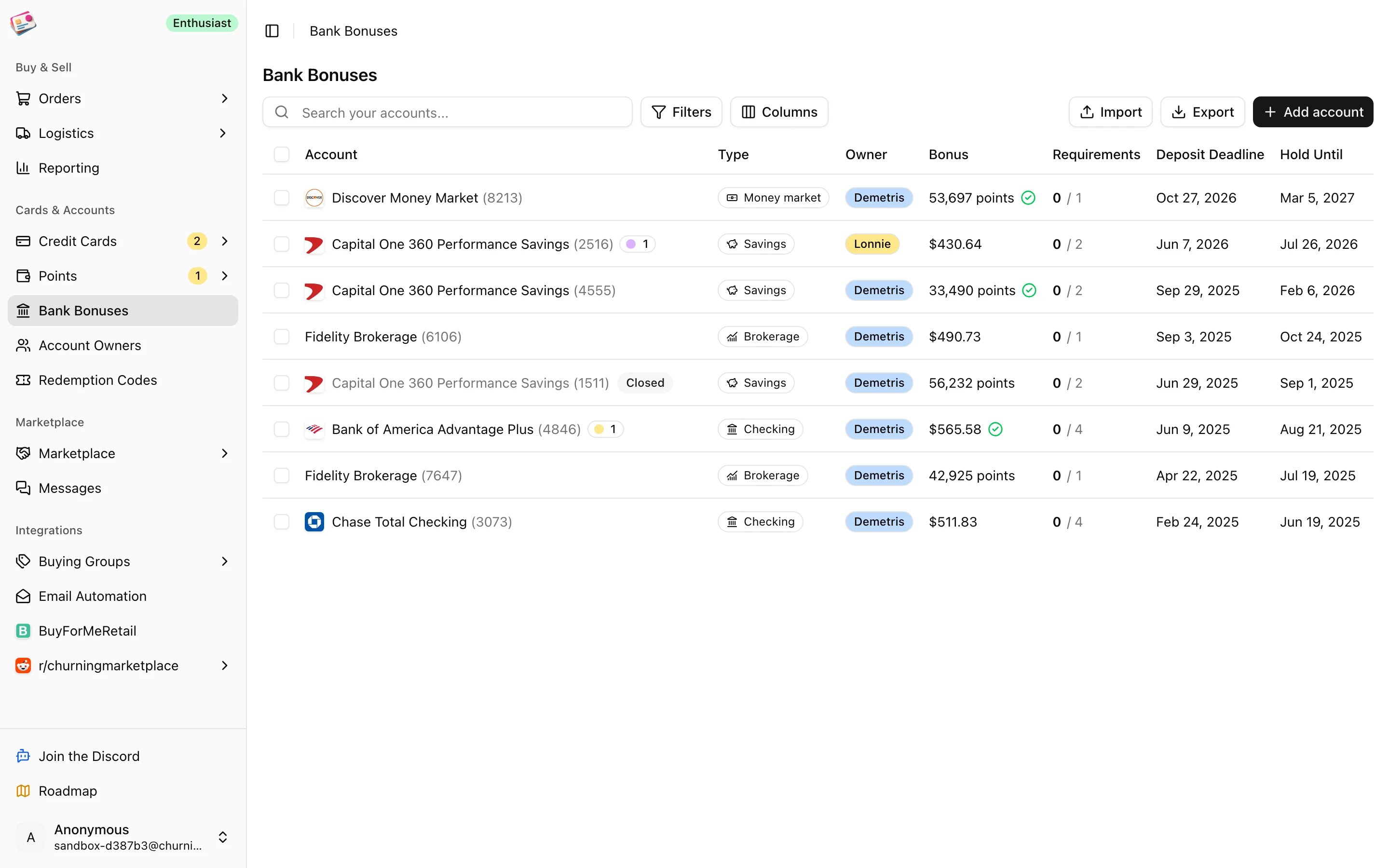
Click Add account.
2
Describe the account
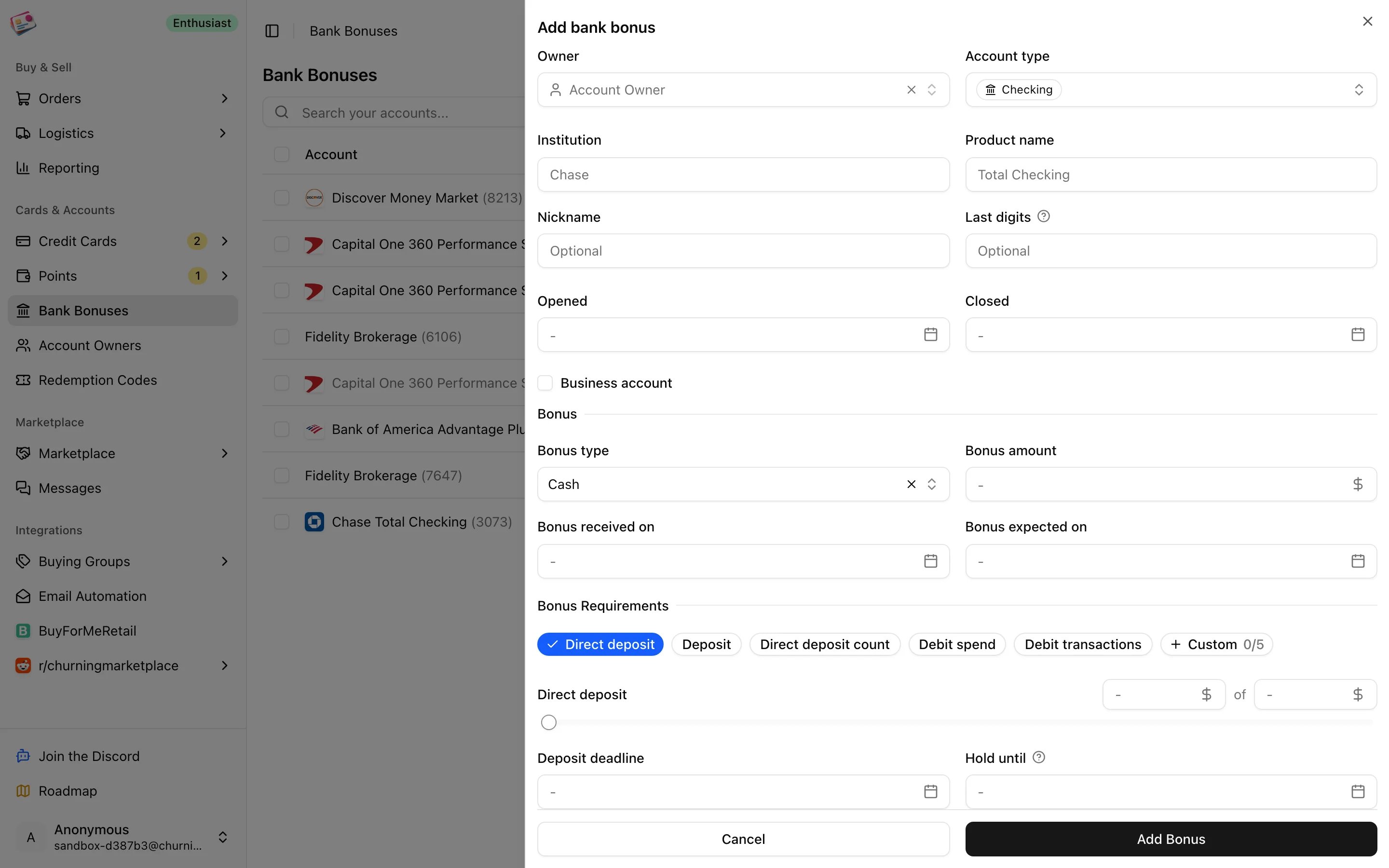
Pick the owner and account type (checking, savings, brokerage, retirement, HSA, CD, money market, or other), then enter the institution and product name, for example Chase and Total Checking. Nickname, last digits, opened and closed dates, and a business flag are optional.
3
Enter the bonus
Choose cash or points, enter the amount, and set the date you expect it. Leave Bonus received on empty for now; filling it in later is how you mark the bonus as paid.
4
Add the requirements
Click the requirement types that apply. Each one becomes a progress row with a slider for how far along you are:
- Direct deposit (checking, savings, money market)
- Deposit and Deposit count
- Debit spend and Debit transactions (checking)
- Custom, up to five, counting dollars or a number
5
Save
Click Add Bonus. Notes, tags, and up to five attachments can be added when editing.
Keeping it up to date
Edit the account and move the sliders as deposits land. The Requirements column shows how many are met; a green check means every deposit requirement is met, and a dashed check means they’re met but the hold period is still running. When the bonus posts, set Bonus received on. The account’s status is worked out for you: Open until you add requirements, In progress while some are unmet, Requirements met, Bonus received, and Closed once a closed date is set.Working with the table
- Filters: tags, account type, owner, hide closed accounts, bonus not yet received.
- Duplicate copies the offer and requirement targets for a new account without the progress or dates, handy when you open the same bonus for another owner.
- Bulk actions: update tags.
- Import a list from a spreadsheet with CSV imports or download one with CSV exports.