
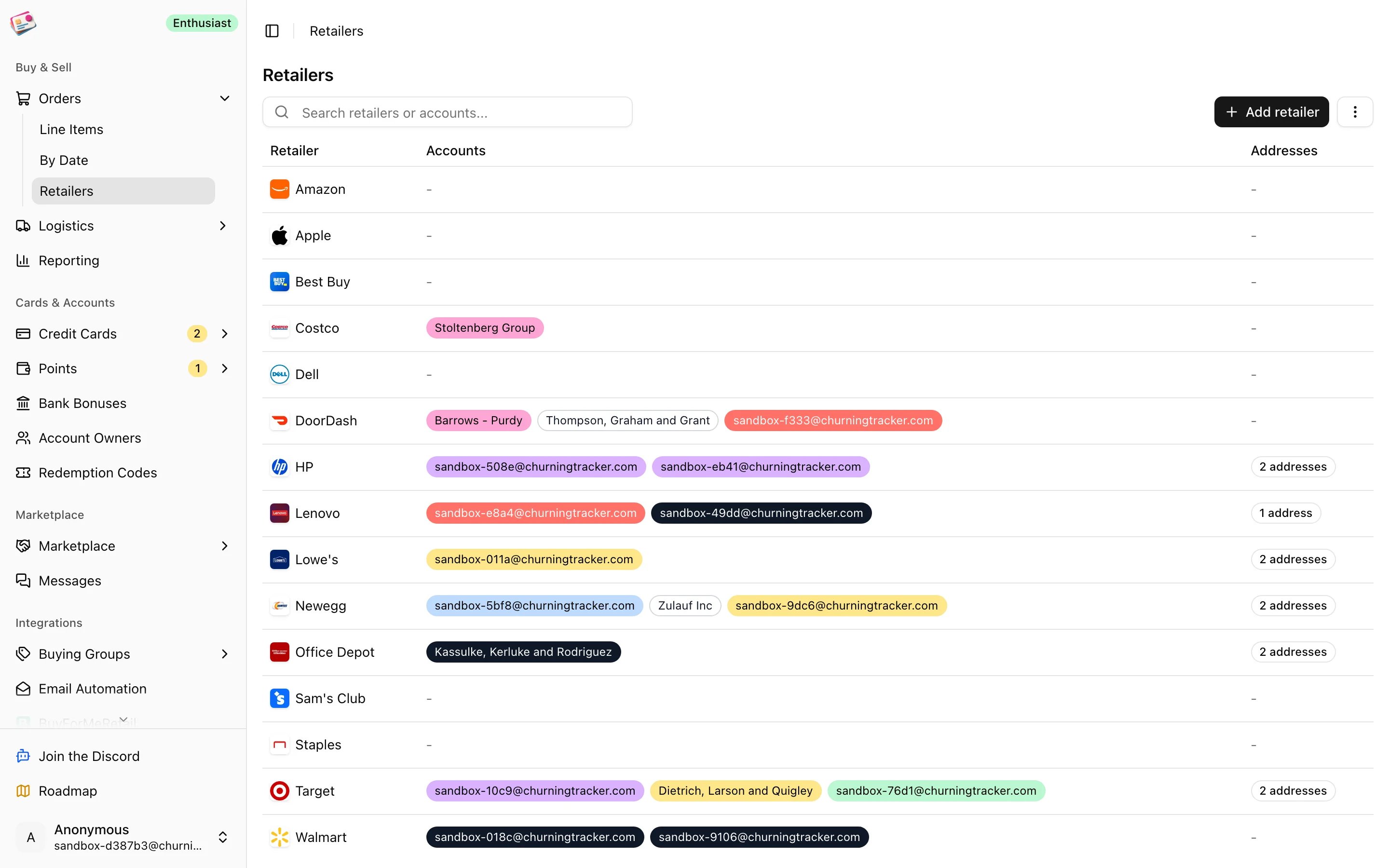
Catalog and custom retailers
Nine featured retailers always appear: Best Buy, Amazon, Walmart, Costco, Dell, Apple, Sam’s Club, HP, and Staples. Other catalog retailers show up once you add an account or address for them. Anything else is a custom retailer: click Add retailer, give it a name up to 25 characters, and it joins the list with a Custom badge. Each plan allows a set number of custom retailers; see Plans and limits. On the order form, the Retailer picker lists featured and custom retailers. For a retailer that’s in neither list, click the pencil next to the picker and type the name.Retailer accounts
Add one account per login you use at a retailer. Click Add retailer account in the toolbar, or Add account on the retailer’s row, then enter the identifier (usually the email or username), an optional nickname, and a color. Accounts matter in three places:- The Retailer Account picker on the order form lists the chosen retailer’s accounts.
- Email automation and the Chrome extension can assign the right account to imported orders when the account email matches the identifier.
- The orders table can be filtered by retailer account.