
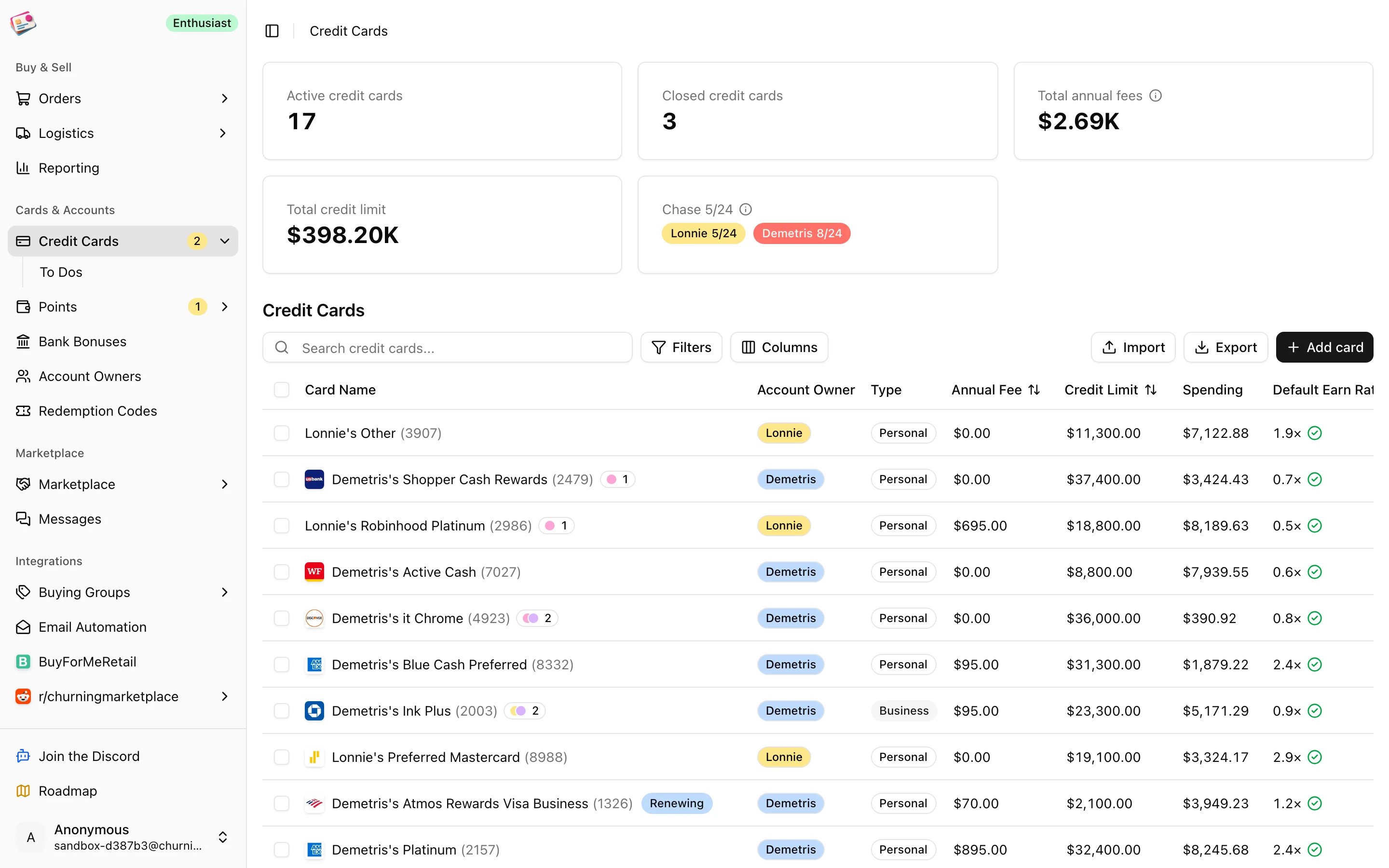
Add a card
1
Open the form
Click Add card.
2
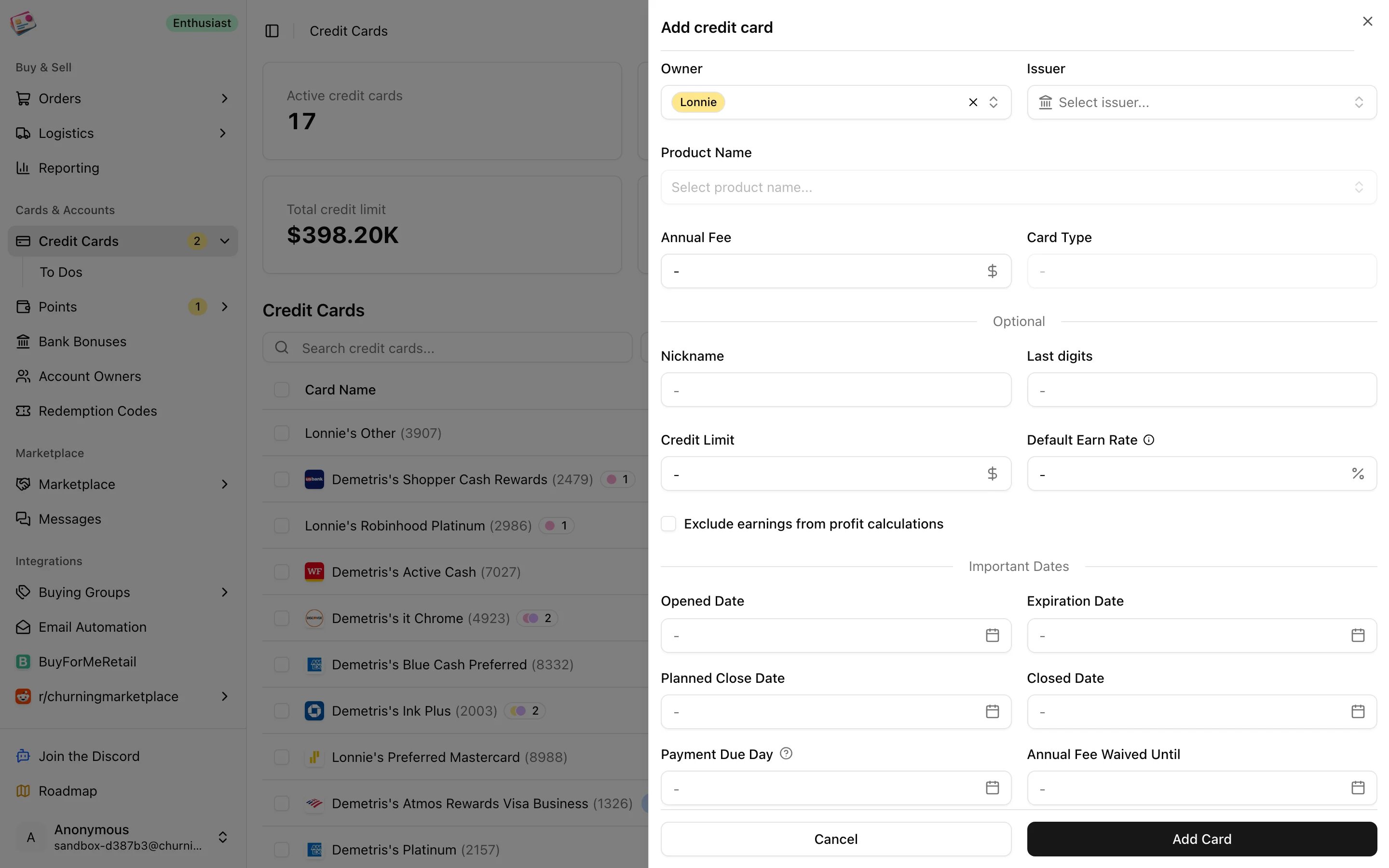
Pick the owner, issuer, and product
Owner defaults to your primary account owner. Choose the issuer, then search the product catalog. The annual fee and card type fill in from the product, and you can change the fee. If a product is missing, use the Can’t find it? Submit a request link.
3
Fill in what you track
Under Optional: nickname, last 4 or 5 digits, credit limit, and the Default Earn Rate, which pre-fills the earn rate on every order paid with this card. Tick Exclude earnings from profit calculations for cards whose points you don’t want counted.Under Important Dates: opened date, expiration, planned close date, closed date, payment due day (use 31 for the last day of the month), and the date an annual fee waiver ends.Under Sign Up Bonus: the bonus amount and type (points or cash), the spend requirement, the deadline, and a Received checkbox.
4
Save
Click Add Card.
Product changes
When you upgrade, downgrade, or sidegrade a card, add the new card and link it under Product Changes with Opened From. Churning Tracker closes the old card on the new card’s open date and links the two, so the detail panel shows the history and the 5/24 count doesn’t double count. Both cards must belong to the same owner.Closing a card
Set the Closed Date. Closed cards get a Closed badge, drop out of To Dos and the renewal count, and are hidden from the order form’s card picker unless you turn on Show closed credit cards. Deleting a card instead removes it from its orders, so their card earnings drop to zero. Set a Planned Close Date and you’ll get an email reminder seven days before.Earn rates and card earnings
Each order has one earn rate, copied from the card’s default when you pick the card, and editable per order under Additional Details. Earnings are worked out from that rate:- Points cards from Amex, Chase, Capital One, Citi, Wells Fargo, U.S. Bank, and Bilt: order total × earn rate × your valuation for that program. Other issuers use 1 cent per point.
- Cash back cards: order total × earn rate as a percentage, so 2× means 2%.
- Cards marked as excluded from profits earn nothing.
Sub-cards
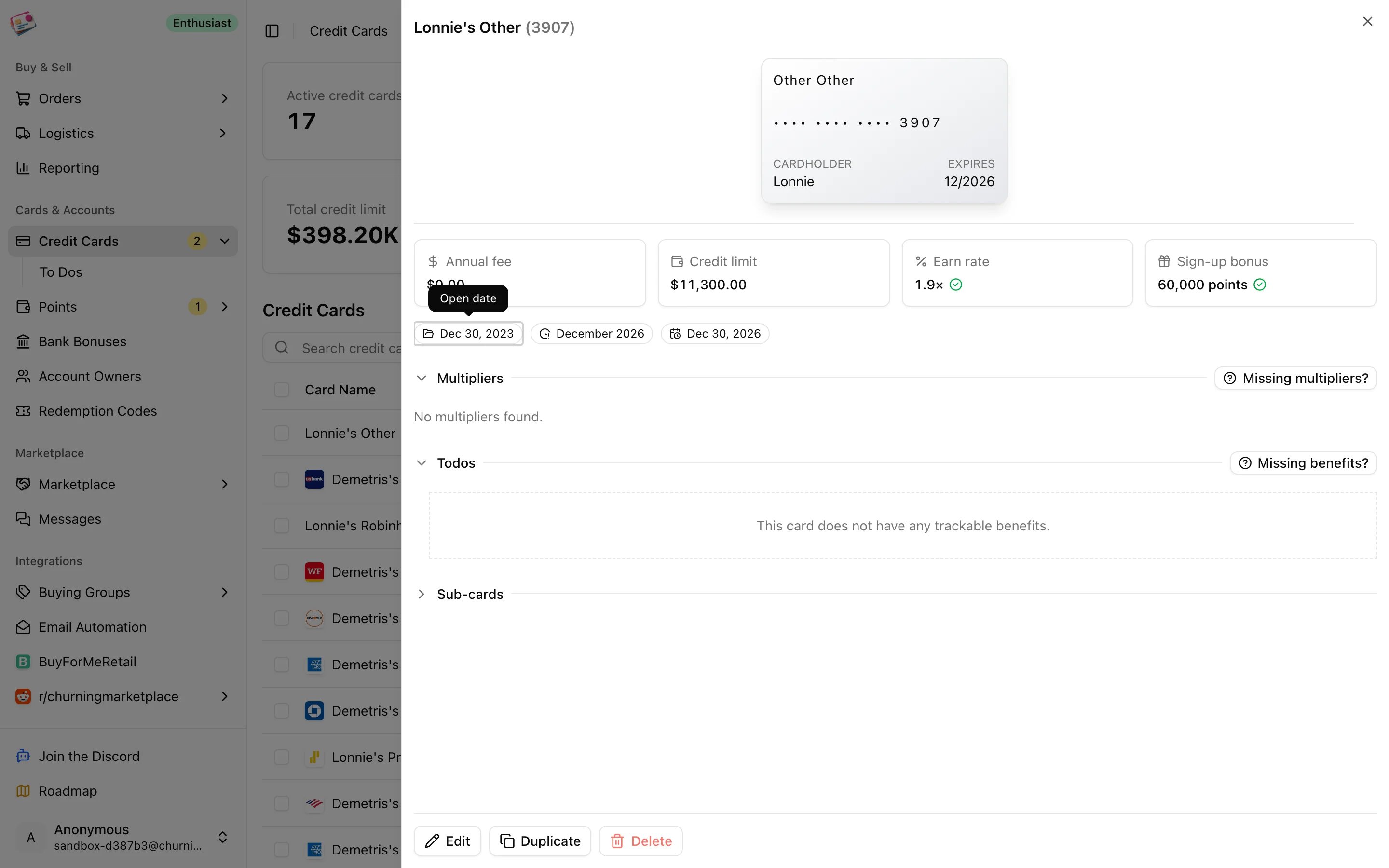
Authorized user, employee, and virtual cards sit under their parent card. Open a card’s detail panel, expand Sub-cards, and click Add sub-card. Give it a nickname or last digits, a type, and an optional spend requirement and deadline. On an order, picking a card that has sub-cards reveals a Sub-card picker. The order still belongs to the parent card, so the parent’s earn rate and exclusion setting decide the earnings, and the parent’s spending includes its sub-cards. Sub-cards are a paid feature with a per-card limit; see Plans and limits.Reading the table
- Badges on the card name: Closed, Due Soon (payment due within five days), Closing (planned close within seven days), Renewing (anniversary within 14 days).
- Spending is the total of non-cancelled buying group, gift card, and resale orders on the card. Hover for the breakdown.
- Expected Renewal is the next anniversary of the opened date.
- Multipliers lets you pick a spending category and sort cards by their rate for it.
- Filters: tags, issuer, personal or business, owner, included or excluded from profits, hide closed cards, and sign-up bonus not yet received.
- Bulk actions: update tags, delete. Import and export are covered in CSV imports and CSV exports.