
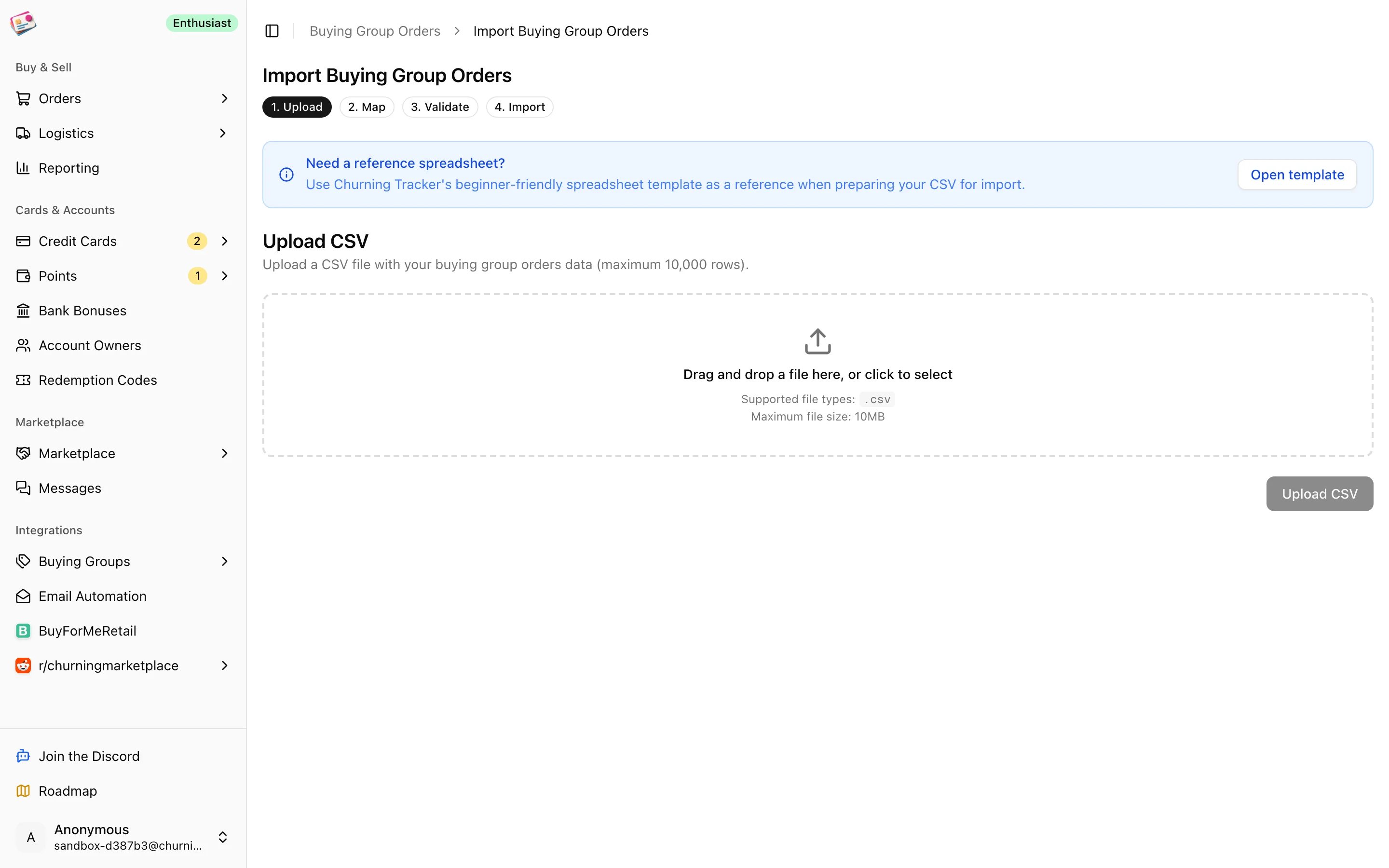
What you can import
Cashback orders, payouts, shipments on their own, and redemption codes can’t be imported. Add those by hand or, for shipments, with the bulk sheet on the Shipments page.
Import a file
1
Upload
Choose a
.csv file up to 10 MB. Each plan caps the rows per file; see Plans and limits. If you’d like a starting point, the Open template link opens a reference spreadsheet for that data type.2
Map the columns
Pick which CSV column feeds each field. Columns whose header matches a field name exactly are mapped for you. Date fields only offer columns that look like dates, and money fields only offer numeric columns, judged from the first few rows. Fields marked Optional can be left unmapped. Hover the info icon on a field for its format, and the list icon for its allowed values.
3
Save the mapping (paid plans)
Click Save Mapping and name it. Next time, click the mapping’s badge on this step to apply it. Badges can be renamed or deleted.
4
Validate
The first 50 rows are checked and any problems are listed by row. Fix them in the file and upload again, or carry on if the list is empty.
5
Import
The result shows how many rows succeeded and failed. Re-importing the same file is safe: rows that match an existing record update it instead of creating a duplicate.
Formats that work
- Dates:
2026-10-14,10/14/2026,Oct 14, 2026, and similar, with or without a time. Order dates can’t be in the future. - Money: dollar signs and commas are fine. Anything unreadable becomes zero.
- Quantity: whole numbers; blank means 1.
- Tracking numbers: several in one cell, separated by commas, semicolons, or line breaks. The carrier is detected from the number if the carrier column is empty.
- Credit card: the last 4 or 5 digits, or a full or masked card number. If two cards share those digits you’ll get an error.
- Card earn rate:
2.5,2.5%, or2.5x. Blank uses the card’s default. - Owner (points, cards, bank bonuses): the exact account owner name, including capitalization.
- Status: the display name as shown in the app. Close matches are accepted.
Order imports
For buying group, gift card, and resale orders, each CSV row is one line item. Rows with the same retailer and order number are combined into one order: tracking numbers are merged and order-level fields take the first non-empty value. An order can hold ten line items; extra rows for the same order are dropped. Required columns are retailer, order number, description (gift card brand and value for gift cards), and unit price. Everything else is optional: order date (defaults to today), buying group or platform, status, retailer account, credit card and earn rate, model, quantity, expected unit payout, shipping, tax, discount, tracking numbers and carrier, and notes. Gift card imports have no shipping or tax columns. If the buying group or platform isn’t one of the built-in names, it’s kept as a custom one. A missing buying group defaults to BuyForMeRetail; a missing resale platform defaults to eBay.Other imports
- Point balances: program name, owner, and balance are required. An existing balance for that program and owner gets a new history entry. A value column, in cents per point, updates your valuation for the program.
- Credit cards: product name and owner are required. Include the issuer in the name if it’s ambiguous. Dates are
MM/dd/yyyy; expiration isMM/yyyy. Existing cards are matched on product, owner, last digits, expiration, and nickname. - Bank bonuses: institution, product name, last digits, and owner are required, with optional bonus and requirement columns.