
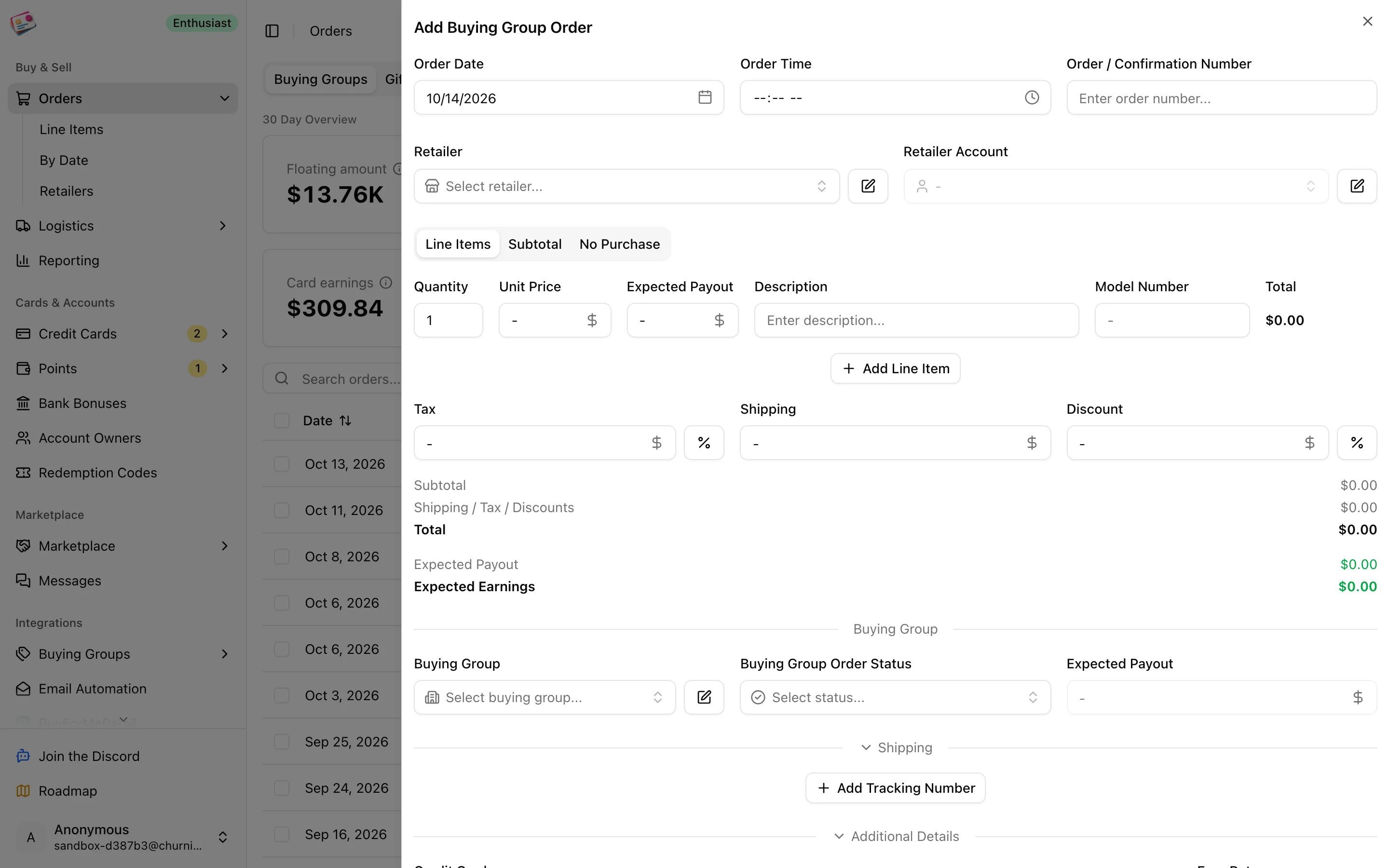
Add an order
1
Open the form
On the Buying Groups tab, click Add order.
2
Enter the order basics
The order date defaults to today. Type the order number, pick the retailer, and pick the retailer account if you use more than one login there. If the retailer is empty, a recognizable order number fills it in: Amazon, Best Buy, Walmart, Apple, HP, and Home Depot formats are detected.
3
Add the line items
One row per product: quantity, unit price, expected payout per unit, description, and model number. Up to ten lines. If you’d rather enter one total, switch to the Subtotal tab, or No Purchase for a deal that needed no purchase.
4
Add tax, shipping, and discounts
Tax and discount can be entered as a percentage with the % toggle. The summary below shows the total, expected payout, card earnings, cashback, and expected profit as you type.
5
Pick the buying group and status
Choose the group, or a custom one from the Manage option. Status defaults to Ordered. In Subtotal mode, enter the expected payout here instead of per line.
6
Add tracking, card, and extras
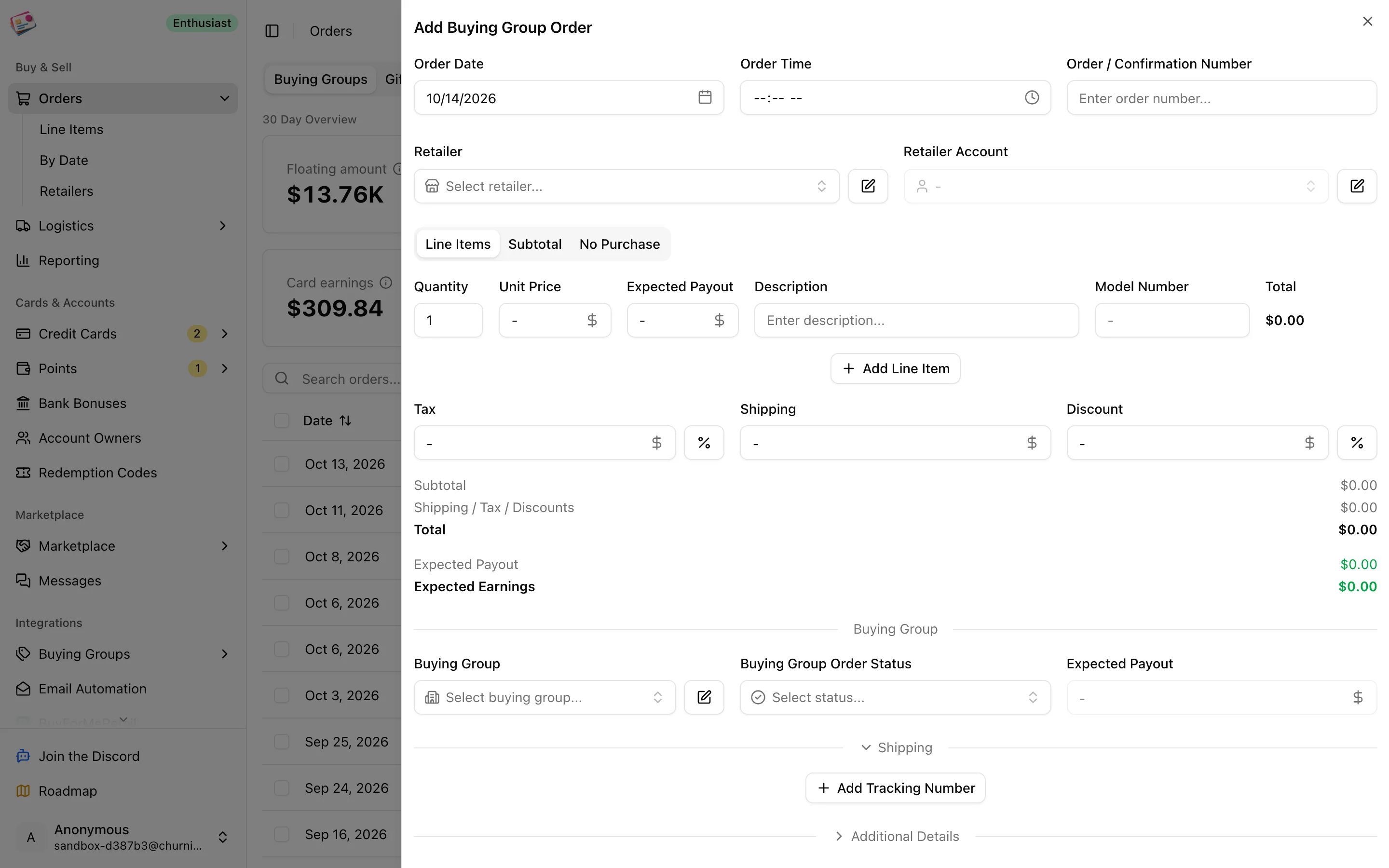
Under Shipping, add tracking numbers now or later; see Shipments. Under Additional Details, pick the credit card. Its default earn rate fills in and can be changed for this order. Cashback, redemption codes, tags, and notes have their own sections.
7
Save
If the order has tracking numbers, it’s saved as Shipped rather than Ordered.
Expected payouts
The expected payout is what the group promised per unit. It drives expected profit and the 3% rule that marks an order paid. On paid plans, leaving it blank on a new line item lets Churning Tracker fill it from the group’s live deals when the model or UPC matches; see Deals. You can also set it later from the table, or for many orders at once with the Update expected payouts bulk action.Statuses
Automatic changes only move forward. You can set any status by hand from the table.
How profit is calculated
- Total cost is subtotal plus shipping and tax, minus discounts.
- Expected profit is expected payout plus card earnings plus expected cashback, minus total cost.
- Actual profit is the payouts you’ve recorded plus card earnings plus posted cashback, minus total cost. It stays empty until the order has a payout.
- Card earnings come from the order’s earn rate and the card’s program valuation; see Credit cards.